The App Diagnostics Report provides a spreadsheet detailing each API call made
by a given application during a specified timeframe. The report gives you
access to the API Request ID, which can be given to Box Support for
troubleshooting purposes.
This report will not include:
API calls made within the last 48 hours
Authorization and Token API calls
We are working on including the above and thereby making the report suitable
for real-time troubleshooting in the future.
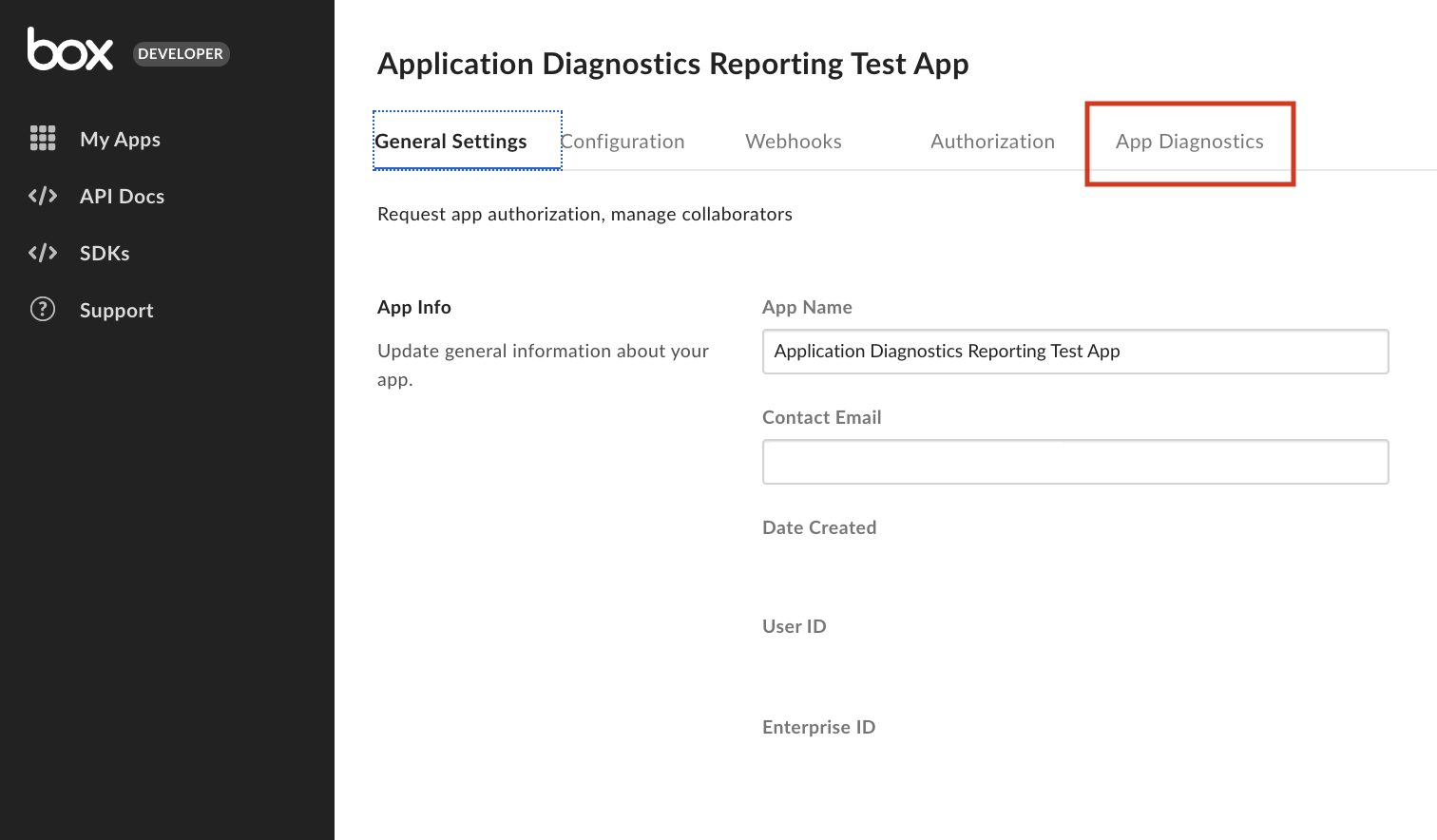
To run the App Diagnostics Report, click the App Diagnostics option located
along the top of your application’s configuration section in
the Developer Console.
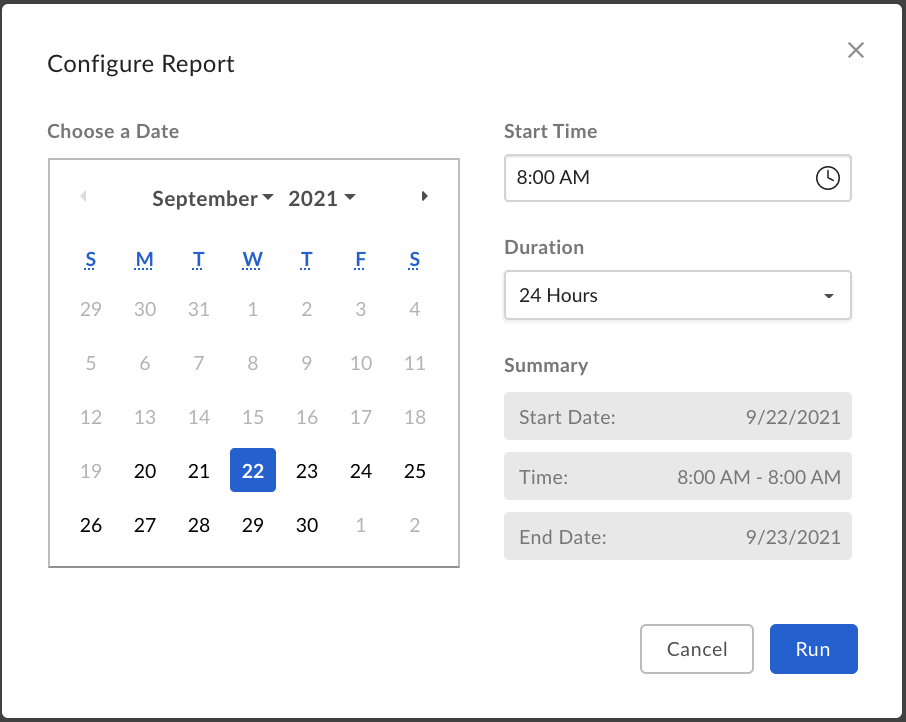
You can select a date in the last two weeks, starting 48 hours prior to today.
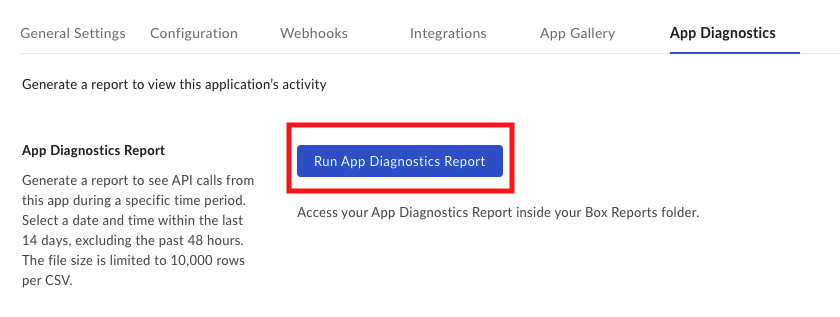
A report can be run for up to a total of 24 hours. Click Run to
generate a report.
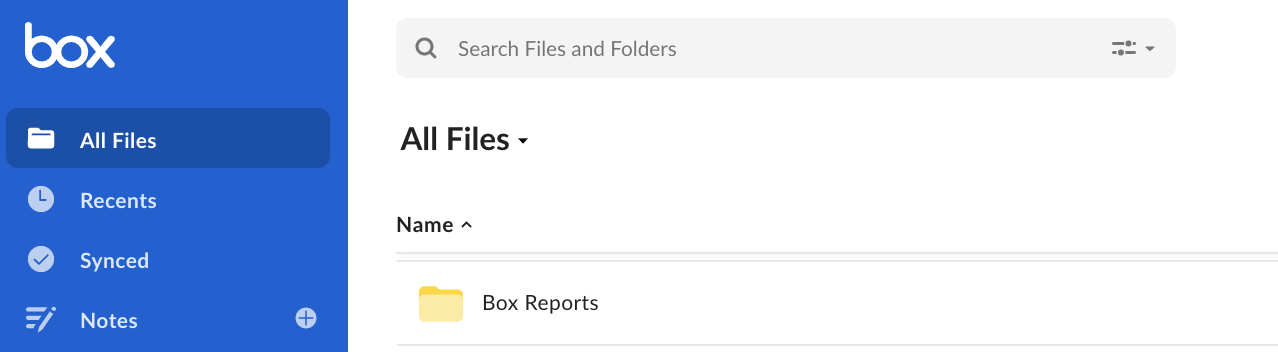
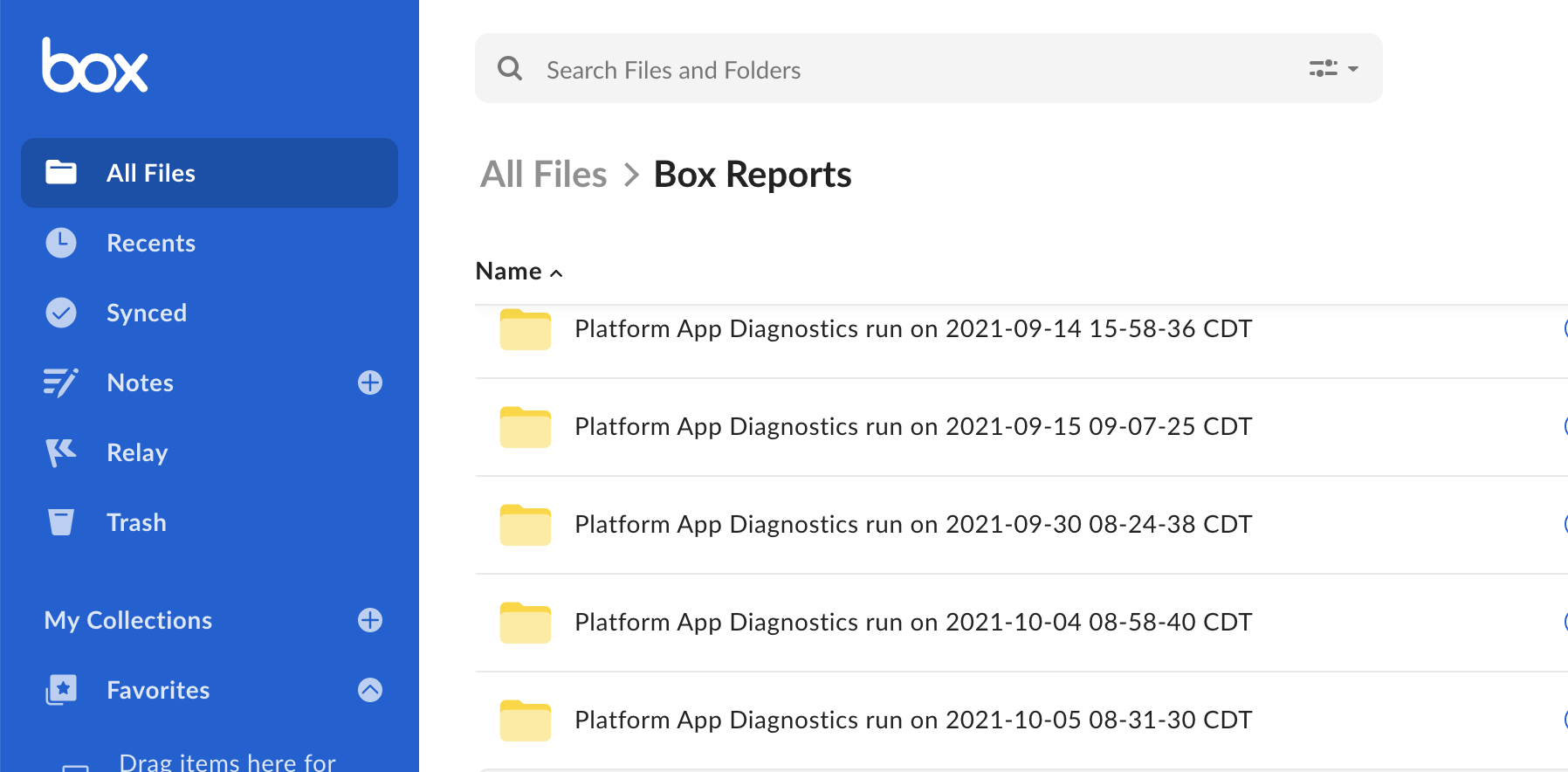
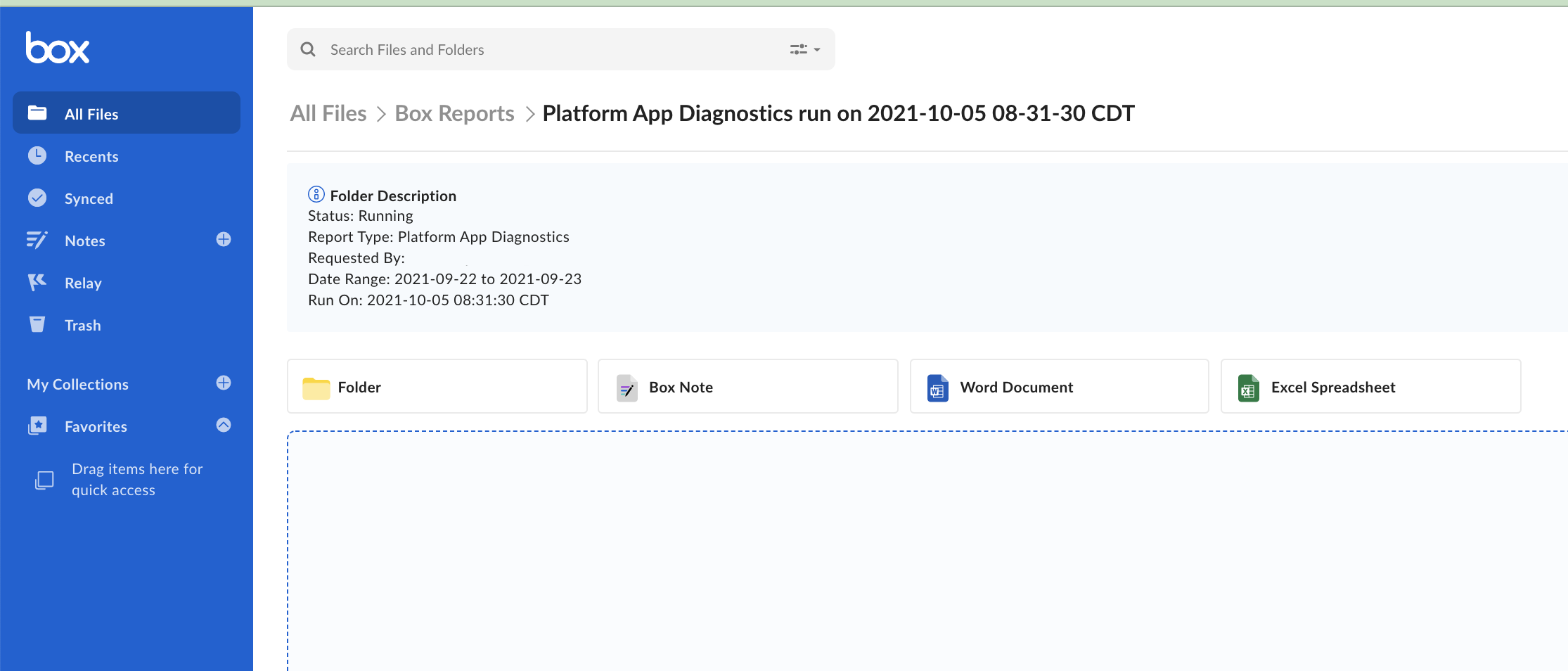
Navigate to All Files and locate the Box Reports folder. If this is
your first time running a report, this folder is automatically generated. If
you are an Admin, this is the same folder you access
Admin Console Reports. Open the folder.
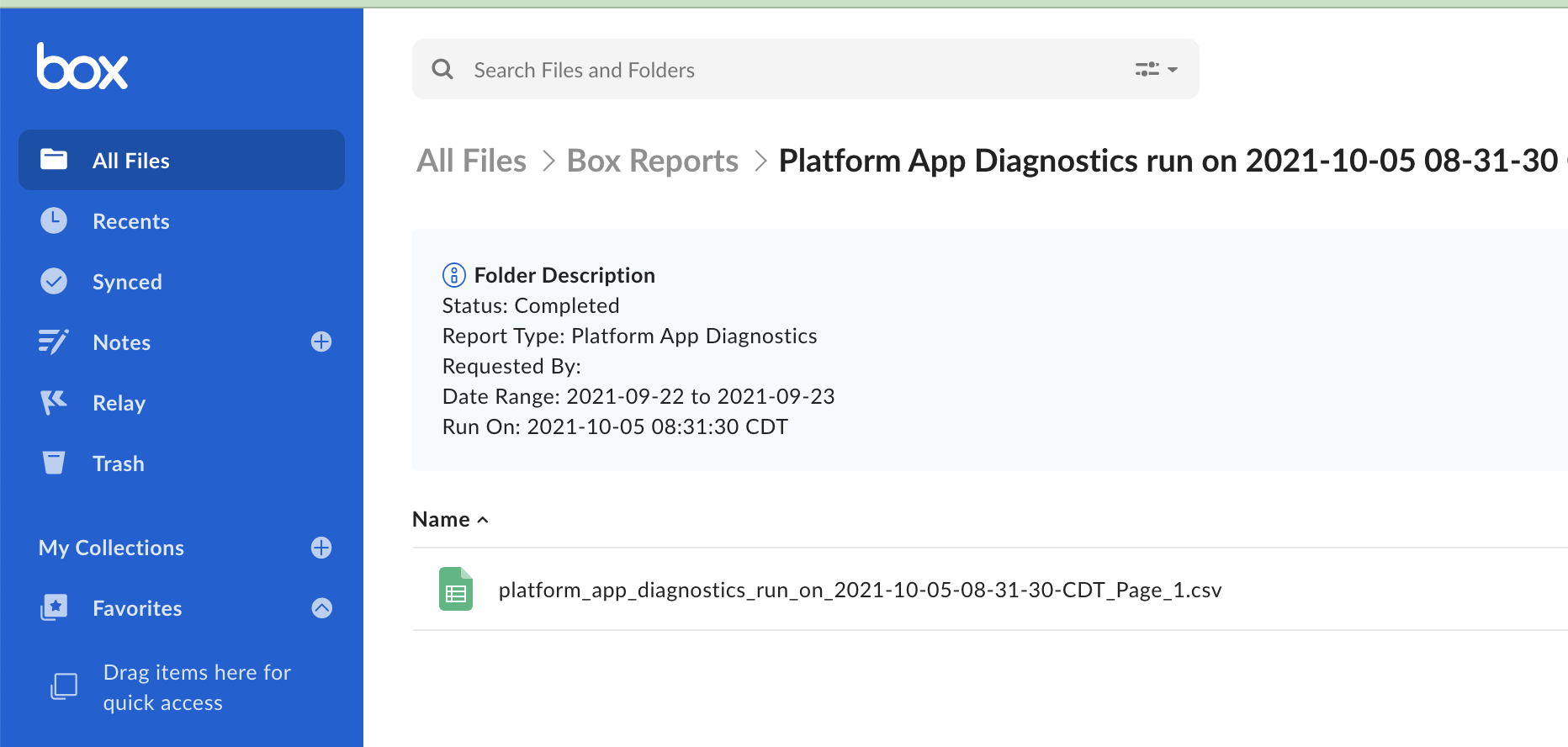
You can open the file in your web browser or download it to view locally. If
you need help from Box Support, you can send in the report with your
ticket by attaching a downloaded copy or via shared link.
The report has nine columns.
Column
Description
App Name
The name of the application
Client ID
The Client ID of the application
HTTP Status Code
The response code returned from Box
API Request Duration (ms)
The amount of time from API call to response
API Request ID
A unique identifier that can be used by Box Support
Resource
The primary resource accessed in the API call
Sub Resource
The secondary resource accessed in the API call
HTTP Method
The type of HTTP method used in the API call
API Request Timestamp
The timestamp of the API call
Last modified on September 4, 2026
Was this page helpful?
{"docsConfig":{"theme":"aspen","$schema":"https://mintlify.com/docs.json","name":"Box Dev Docs","description":"Box for Developers: guides, API reference, SDKs, and tutorials for building content management, Box AI, and enterprise integrations.","colors":{"primary":"#0061d5","light":"#f6fafd","dark":"#002947"},"logo":{"light":"https://mintcdn.com/box/lJLw9z7FWORNWMcq/logo/boxdev-light.png?fit=max\u0026auto=format\u0026n=lJLw9z7FWORNWMcq\u0026q=85\u0026s=a11710b698ff59d24426f9ecec6c7e9c","dark":"https://mintcdn.com/box/siVVIgx7pBuvW4ua/logo/boxdev-dark.svg?fit=max\u0026auto=format\u0026n=siVVIgx7pBuvW4ua\u0026q=85\u0026s=0e34af393abb1b8c024258d684bb7732"},"favicon":"https://mintcdn.com/box/T2hwpVFBJMA4eeDs/favicon.ico?fit=max\u0026auto=format\u0026n=T2hwpVFBJMA4eeDs\u0026q=85\u0026s=2a2efcc60e46eca7ee3ebbe650c47350","api":{"examples":{"languages":["curl","python","node","swift","java",".Net"],"autogenerate":false}},"seo":{"metatags":{"google-site-verification":"fuelbNhVR1kQluNBJjYt4K1Hj5HvJLhLnIq0o9CAY9E"}},"fonts":{"family":"Inter"},"contextual":{"options":[{"title":"Install Box Agent Skills","description":"Add Box plugins to your AI assistants","icon":"sparkles","href":"/ai/agent-skills"},"cursor","vscode","mcp","chatgpt","claude","perplexity","copy","view"],"display":"header"},"metadata":{"timestamp":true},"styling":{"latex":false},"navigation":{"languages":[{"language":"en","banner":{"content":"Join BoxWorks Dev Summit on Nov 5-6, San Francisco and dive into AI agents and unstructured content. [See agenda](https://boxworks.box.com/series/boxworks-2026-dev-summit/landing_page).","dismissible":true},"footer":{"socials":{"x":"https://x.com/box","github":"https://github.com/box-community","linkedin":"https://linkedin.com/company/box","youtube":"https://www.youtube.com/user/box","facebook":"https://www.facebook.com/box"},"links":[{"header":"Resources","items":[{"label":"Newsletter unsubscribe","href":"https://go.box.com/preferences.html"},{"label":"Terms of Use","href":"https://cloud.app.box.com/s/rmwxu64h1ipr41u49w3bbuvbsa29wku9"},{"label":"Privacy Policy","href":"https://www.box.com/en-gb/legal/privacypolicy?url_redirect=direct"},{"label":"Cookie Notification","href":"https://www.box.com/en-gb/legal/cookie-notification?url_redirect=direct"},{"label":"llms.txt","href":"https://developer.box.com/llms.txt"}]}]},"navbar":{"links":[{"href":"https://account.box.com/developers/console","label":"Log in","type":"button"}],"primary":{"type":"button","label":"Get started for free","href":"https://account.box.com/signup/developer"}},"href":""},{"language":"ja","banner":{"content":"Join live webinar on Sept 29: See how to give agents a computer and enterprise content to work on with Box and Daytona. [Register now](https://events.zoom.us/ev/Amkp36LSSk_TxOQbBytoLoHa_Ztg7quKlJv2u74NRvSZJtlnbG5L~AqO7fnFo-ePaTqEcPrKs4jSfhxq3pMVK52ut69Q2zfn9jOr70vx5DQVJaeNF1dDZE9_0N33jMcY1yE9LoHDL5Oamqg).","dismissible":true},"footer":{"socials":{"x":"https://x.com/box","github":"https://github.com/box-community","linkedin":"https://linkedin.com/company/box","youtube":"https://www.youtube.com/user/box","facebook":"https://www.facebook.com/box"},"links":[{"header":"リソース","items":[{"label":"ニュースレターの登録解除","href":"https://go.box.com/preferences.html"},{"label":"利用規約","href":"https://cloud.app.box.com/s/rmwxu64h1ipr41u49w3bbuvbsa29wku9"},{"label":"個人情報保護方針","href":"https://www.box.com/en-gb/legal/privacypolicy?url_redirect=direct"},{"label":"Cookieに関する通知","href":"https://www.box.com/en-gb/legal/cookie-notification?url_redirect=direct"},{"label":"llms.txt","href":"https://developer.box.com/llms.txt"}]}]},"navbar":{"links":[{"href":"https://account.box.com/developers/console","label":"ログイン","type":"button"}],"primary":{"type":"button","label":"今すぐ無料で開始","href":"https://account.box.com/signup/developer"}},"href":"ja"}]}},"deployment":{"deploymentMetadataValue":{"subdomain":"box","hasAudioNarration":false,"actualSubdomain":"box","customDomains":["developer.box.com"],"gitSource":{"type":"github","owner":"box","repo":"box-mintlify","deployBranch":"main","contentDirectory":"","isPrivate":true,"mountPath":"","label":""},"chroma":{"liveDeploymentHistoryId":"6ada2510a23ba420c330bb28","collectionId":"6d1989e3-75f1-4ca5-8941-b458e74180af","schemaVersion":"v3","latestBuiltDeploymentHistoryId":"6ada2510a23ba420c330bb28"},"feedback":{"thumbs":true,"issues":false},"entitlements":{"AI_CHAT":{"status":"ENABLED"},"REMOVE_BRANDING":{"status":"ENABLED"},"CONTEXTUAL_FEEDBACK":{"status":"ENABLED"},"CODE_SNIPPET_FEEDBACK":{"status":"ENABLED"},"WEB_MCP":{"status":"ENABLED"},"NARRATION":{"status":"ENABLED"}},"buildId":"6ada2510a23ba420c330bb28","clientVersion":"0.0.3966","searchFilterCounts":[{"language":"en","tag":"API reference","count":641},{"language":"ja","tag":"ホーム","count":368},{"language":"ja","tag":"APIリファレンス","count":339},{"language":"en","tag":"Home","count":302},{"language":"ja","tag":"AI","count":187},{"language":"en","tag":"AI","count":173},{"language":"ja","tag":"コラボレーション","count":81},{"language":"ja","tag":"ツール","count":76},{"language":"ja","tag":"開発ツール","count":76},{"language":"ja","tag":"メタデータと検索","count":67},{"language":"en","tag":"Tools","count":62},{"language":"en","tag":"Dev tools","count":62},{"language":"ja","tag":"コンテンツ","count":58},{"language":"en","tag":"Metadata \u0026 search","count":56},{"language":"en","tag":"Collaboration","count":50},{"language":"en","tag":"Content","count":49},{"language":"ja","tag":"メタデータ","count":49},{"language":"en","tag":"Supported AI models","count":46},{"language":"ja","tag":"サポートされているAIモデル","count":44},{"language":"en","tag":"Metadata","count":41}]},"assistantConfig":{"enableAskAiButton":false,"enableAskAiSearchBar":true},"hasChatPermissions":true,"hasWebMcpPermissions":true,"toggles":[{"name":"kill-isr","enabled":true,"variant":{"name":"disabled","enabled":false,"feature_enabled":true},"impressionData":false},{"name":"agent-mintlify-slack","enabled":true,"variant":{"name":"disabled","enabled":false,"feature_enabled":true},"impressionData":false},{"name":"editor-v7-file-tree","enabled":true,"variant":{"name":"disabled","enabled":false,"feature_enabled":true},"impressionData":false},{"name":"agent-integrations-settings","enabled":true,"variant":{"name":"disabled","enabled":false,"feature_enabled":true},"impressionData":false},{"name":"automations-pr-grouping","enabled":true,"variant":{"name":"disabled","enabled":false,"feature_enabled":true},"impressionData":false},{"name":"custom-prefix","enabled":true,"variant":{"name":"disabled","enabled":false,"feature_enabled":true},"impressionData":false},{"name":"analytics-v7","enabled":true,"variant":{"name":"disabled","enabled":false,"feature_enabled":true},"impressionData":false},{"name":"user-flows-analytics","enabled":true,"variant":{"name":"disabled","enabled":false,"feature_enabled":true},"impressionData":false},{"name":"no-publish-flow","enabled":true,"variant":{"name":"disabled","enabled":false,"feature_enabled":true},"impressionData":false},{"name":"workos-onboarding","enabled":true,"variant":{"name":"disabled","enabled":false,"feature_enabled":true},"impressionData":false},{"name":"llms-txt-v2","enabled":true,"variant":{"name":"disabled","enabled":false,"feature_enabled":true},"impressionData":false},{"name":"pause-universal-search-reconcile","enabled":true,"variant":{"name":"disabled","enabled":false,"feature_enabled":true},"impressionData":false},{"name":"snapshot-serving-live","enabled":true,"variant":{"name":"disabled","enabled":false,"feature_enabled":true},"impressionData":false},{"name":"stripTemperatureMiddleware","enabled":true,"variant":{"name":"disabled","enabled":false,"feature_enabled":true},"impressionData":false},{"name":"per-site-search-delta","enabled":true,"variant":{"name":"disabled","enabled":false,"feature_enabled":true},"impressionData":false},{"name":"support-platform-pylon-zendesk","enabled":true,"variant":{"name":"disabled","enabled":false,"feature_enabled":true},"impressionData":false},{"name":"snapshot-serving","enabled":true,"variant":{"name":"disabled","enabled":false,"feature_enabled":true},"impressionData":false},{"name":"instant-rollback","enabled":true,"variant":{"name":"disabled","enabled":false,"feature_enabled":true},"impressionData":false},{"name":"granular-notifications-server","enabled":true,"variant":{"name":"disabled","enabled":false,"feature_enabled":true},"impressionData":false},{"name":"granular-notifications","enabled":true,"variant":{"name":"disabled","enabled":false,"feature_enabled":true},"impressionData":false},{"name":"editor-private-page-search","enabled":true,"variant":{"name":"disabled","enabled":false,"feature_enabled":true},"impressionData":false},{"name":"automations-fable","enabled":true,"variant":{"name":"disabled","enabled":false,"feature_enabled":true},"impressionData":false},{"name":"fixed-ai-action-pricing","enabled":true,"variant":{"name":"disabled","enabled":false,"feature_enabled":true},"impressionData":false},{"name":"automation-resolve-merge-conflict","enabled":true,"variant":{"name":"disabled","enabled":false,"feature_enabled":true},"impressionData":false},{"name":"scoped-publishing","enabled":true,"variant":{"name":"disabled","enabled":false,"feature_enabled":true},"impressionData":false},{"name":"mintql","enabled":true,"variant":{"name":"disabled","enabled":false,"feature_enabled":true},"impressionData":false},{"name":"page-level-analytics","enabled":true,"variant":{"name":"disabled","enabled":false,"feature_enabled":true},"impressionData":false},{"name":"editor-version-history-v2","enabled":true,"variant":{"name":"disabled","enabled":false,"feature_enabled":true},"impressionData":false},{"name":"editor-nav-generations","enabled":true,"variant":{"name":"disabled","enabled":false,"feature_enabled":true},"impressionData":false},{"name":"billing-page-v2","enabled":true,"variant":{"name":"disabled","enabled":false,"feature_enabled":true},"impressionData":false},{"name":"workspace-projects","enabled":true,"variant":{"name":"disabled","enabled":false,"feature_enabled":true},"impressionData":false},{"name":"assistant-v5","enabled":true,"variant":{"name":"disabled","enabled":false,"feature_enabled":true},"impressionData":false},{"name":"byok-sep-25","enabled":true,"variant":{"name":"disabled","enabled":false,"feature_enabled":true},"impressionData":false},{"name":"fork-pr-previews","enabled":true,"variant":{"name":"disabled","enabled":false,"feature_enabled":true},"impressionData":false},{"name":"revalidation-jwt","enabled":true,"variant":{"name":"disabled","enabled":false,"feature_enabled":true},"impressionData":false},{"name":"vite-origin","enabled":true,"variant":{"name":"disabled","enabled":false,"feature_enabled":true},"impressionData":false},{"name":"editor-agent-model-picker","enabled":true,"variant":{"name":"disabled","enabled":false,"feature_enabled":true},"impressionData":false},{"name":"billing-updated-9-15","enabled":true,"variant":{"name":"disabled","enabled":false,"feature_enabled":true},"impressionData":false},{"name":"hobby-abuse-scan","enabled":true,"variant":{"name":"disabled","enabled":false,"feature_enabled":true},"impressionData":false},{"name":"dashboard-inbox","enabled":true,"variant":{"name":"disabled","enabled":false,"feature_enabled":true},"impressionData":false}],"isAtlas":false,"googleFontsInlined":false},"customCss":[{"filePath":"styles.css","content":"a code{border-bottom-color:none!important}.prose :where(a code):not(:where([class~=\"not-prose\"], [class~=\"not-prose\"] *)){color:inherit;font-weight:inherit;text-decoration:none;text-decoration-color:rgb(var(--primary));text-underline-offset:0;text-decoration-thickness:1px}#consent_blackbar{position:relative;z-index:9999999!important}#sidebar,.left-0.right-0.sticky.sm\\:px-4.pb-4.sm\\:pb-6.bottom-0.pt-1.flex.flex-col.items-center.w-full.overflow-hidden.z-20{z-index:1}#footer>div,#sidebar-content{z-index:0}a.nav-anchor img[src$=\"/images/sidebar/box.svg\"]{background-color:transparent!important}#truste-consent-track{z-index:9999999!important;position:fixed!important}.dark #truste-consent-track{background-color:#151f26!important;border-color:#1a1a1a}.dark #truste-show-consent{background-color:#fff;color:#151f26}.dark #truste-consent-text{color:#fff}#truste-consent-content{max-width:1400px}.homepage_container .card img{max-height:200px}.homepage_container h1 span,.homepage_container h2 span{margin:auto}#navbar .max-w-8xl.mx-auto.relative button .ml-4.flex.text-sm.leading-6.whitespace-nowrap.min-w-0.space-x-3.overflow-hidden,header#header .eyebrow{display:none!important}.sidebar-group-header:has(+.sidebar-group>li:is(\n [id=\"/reference\"],\n [id=\"/ja/reference\"],\n [id=\"/ja/reference/v2025.0\"],\n [id=\"/ja/reference/v2026.0\"]\n))>.sidebar-title{display:none}footer div.flex.gap-4.flex-col.md\\:flex-row.md\\:items-center.md\\:gap-8.md\\:justify-center{flex-wrap:wrap}footer div.flex.gap-4.flex-col.md\\:flex-row.md\\:items-center.md\\:gap-8.md\\:justify-center a{white-space:nowrap;text-overflow:clip;overflow:visible;align-self:start;flex-shrink:0;cursor:pointer!important}#google-preferred-source-column{display:flex;flex-direction:column;align-items:flex-end;flex:0 0 auto;width:max-content;max-width:100%}#google-preferred-source{display:flex;justify-content:flex-end;width:auto;margin:0;padding-top:16px}.google-preferred-source-button{appearance:none;margin:0;padding:0;border:0;background:0 0;line-height:0;cursor:pointer}.google-preferred-source-badge{display:block;width:140px;max-width:100%;height:auto}.dark .google-preferred-source-badge--light,.google-preferred-source-badge--dark{display:none}.dark .google-preferred-source-badge--dark{display:block}.nav-logo{min-width:109px}.badge-guide,.badge-quickstart,.badge-tutorial,.dark .badge-guide,.dark .badge-quickstart,.dark .badge-tutorial{background-color:#1f2937;color:#fff}.badge-get{background-color:rgb(74 222 128/.2);color:#15803d}.dark .badge-get{color:#4ade80}.badge-post{background-color:rgb(96 165 250/.2);color:#1d4ed8}.dark .badge-post{color:#60a5fa}.badge-patch,.badge-put{background-color:rgb(250 204 21/.2);color:#a16207}.dark .badge-patch,.dark .badge-put{color:#facc15}.badge-delete{background-color:rgb(248 113 113/.2);color:#b91c1c}.dark .badge-delete{color:#f87171}.badge-api{background-color:#e3f2fd;color:#0d47a1}.dark .badge-api{background-color:#0d47a1;color:#bbdefb}.badge-documentation,.badge-reference,.dark .badge-documentation,.dark .badge-reference{background-color:#000;color:#fff}.badge-default{background-color:#f5f5f5;color:#424242}.badge-group{display:inline-flex;gap:.5rem;flex-wrap:wrap}.dark .badge-default{background-color:#424242;color:#e0e0e0}.update>div:first-child>div:nth-child(3){padding:0;order:4}.update>div:first-child>div:nth-child(3)>span{display:flex;padding:.25rem .75rem;align-items:center;border-radius:9999px;font-size:.875rem;line-height:1.25rem;color:#374151;background-color:#f3f4f6}.dark .update>div:first-child>div:nth-child(3)>span{color:#cecece;background-color:#161616}.update>div:first-child>div:nth-child(4){order:3}div#banner a{text-decoration:none!important;color:#fff;font-weight:600}nav ul #topbar-cta-button a span,nav ul .navbar-link a{border-radius:50px!important}nav ul #topbar-cta-button a span{background-color:#0061d5}#topbar-cta-button a:hover span{opacity:1!important;background-color:#146bd5}.dark #topbar-cta-button a:hover span{opacity:1!important;background-color:#0058c3}.signup-cta-button,.signup-cta-button:active,.signup-cta-button:focus,.signup-cta-button:hover{background-color:#0061d5;border-radius:50px!important;transition:background-color .2s!important;box-shadow:none!important;transform:none!important;border:0!important;border-bottom:none!important;text-decoration:none!important;outline:0!important}.signup-cta-button:hover{background-color:#146bd5!important;opacity:1!important}.dark .signup-cta-button:hover{background-color:#0058c3!important;opacity:1!important}.homepage-secondary-button,.homepage-secondary-button:active,.homepage-secondary-button:focus,.homepage-secondary-button:hover{border-radius:50px!important;border:1px solid #d1d5db!important;background-color:transparent!important;color:#1f2937!important;transition:background-color .2s!important;box-shadow:none!important;transform:none!important;text-decoration:none!important;outline:0!important}.homepage-secondary-button:hover{background-color:#f9fafb!important}.dark .homepage-secondary-button,.dark .homepage-secondary-button:active,.dark .homepage-secondary-button:focus{border-color:#4b5563!important;color:#e5e7eb!important}.dark .homepage-secondary-button:hover{background-color:#1f2937!important}.signup-cta-login,.signup-cta-login:active,.signup-cta-login:focus,.signup-cta-login:hover{text-decoration:none!important;border-bottom:none!important}#content-area h1,#content-area h2,#content-area h3,#content-area h4,#content-area h5,#content-area h6{font-weight:600!important}#content-area h1{font-size:32px!important}.dark img[src*=\"guides-box-ai-ai-models/claude.svg\"],.dark img[src*=\"guides-box-ai-ai-models/gemini.svg\"],.dark img[src*=\"guides-box-ai-ai-models/grok.svg\"],.dark img[src*=\"guides-box-ai-ai-models/meta.svg\"],.dark img[src*=\"guides-box-ai-ai-models/mistral.svg\"],.dark img[src*=\"guides-box-ai-ai-models/openai.svg\"]{filter:invert(1)}.homepage_h2{font-size:28px!important}.chat-assistant-floating-input{z-index:1!important}"}],"page":{"pagePath":"guides/troubleshooting/app-diagnostics-report","slug":"/guides/troubleshooting/app-diagnostics-report","pageMetadata":{"title":"App Diagnostics Report","description":null,"href":"/guides/troubleshooting/app-diagnostics-report"},"pageType":"default","mdx":{"mdxSource":{"compiledSource":"\"use strict\";const{Fragment:_Fragment,jsx:_jsx,jsxs:_jsxs}=arguments[0];const{useMDXComponents:_provideComponents}=arguments[0];function _createMdxContent(props){const _components={a:`a`,code:`code`,li:`li`,p:`p`,strong:`strong`,tbody:`tbody`,td:`td`,th:`th`,thead:`thead`,tr:`tr`,ul:`ul`,..._provideComponents(),...props.components},{Frame,Heading,OptimizedImage,Table,Warning}=_components;if(!Frame)_missingMdxReference(`Frame`,true);if(!Heading)_missingMdxReference(`Heading`,true);if(!OptimizedImage)_missingMdxReference(`OptimizedImage`,true);if(!Table)_missingMdxReference(`Table`,true);if(!Warning)_missingMdxReference(`Warning`,true);return _jsxs(_Fragment,{children:[_jsxs(_components.p,{children:[`The App Diagnostics Report provides a spreadsheet detailing each API call made\nby a given application during a specified timeframe. The report gives you\naccess to the `,_jsx(_components.code,{children:`API Request ID`}),`, which can be given to Box Support for\ntroubleshooting purposes.`]}),`\n`,_jsxs(Warning,{children:[_jsx(_components.p,{children:`This report will not include:`}),_jsxs(_components.ul,{children:[`\n`,_jsx(_components.li,{children:`API calls made within the last 48 hours`}),`\n`,_jsx(_components.li,{children:`Authorization and Token API calls`}),`\n`]}),_jsx(_components.p,{children:`We are working on including the above and thereby making the report suitable\nfor real-time troubleshooting in the future.`})]}),`\n`,_jsxs(Heading,{level:`2`,id:`1-click-on-the-app-diagnostics-tab`,children:[`1. Click on the `,_jsx(_components.strong,{children:`App Diagnostics`}),` Tab`]}),`\n`,_jsxs(_components.p,{children:[`To run the App Diagnostics Report, click the `,_jsx(_components.strong,{children:`App Diagnostics`}),` option located\nalong the top of your application’s configuration section in\nthe `,_jsx(_components.a,{href:`https://app.box.com/developers/console`,children:`Developer Console`}),`.`]}),`\n`,_jsx(Frame,{center:true,shadow:true,children:_jsx(OptimizedImage,{src:`https://mintcdn.com/box/Z1XcLZTI-opBQvuM/images/guides/api-calls/permissions-and-errors/New-Menu-Option.png?fit=max\u0026auto=format\u0026n=Z1XcLZTI-opBQvuM\u0026q=85\u0026s=05b7303e717a6490e8f592f51223420a`,alt:`New Menu Option`,\"data-og-width\":`1512`,width:`1512`,\"data-og-height\":`884`,height:`884`,\"data-path\":`images/guides/api-calls/permissions-and-errors/New-Menu-Option.png`,\"data-optimize\":`true`,\"data-opv\":`3`,srcset:`https://mintcdn.com/box/Z1XcLZTI-opBQvuM/images/guides/api-calls/permissions-and-errors/New-Menu-Option.png?w=280\u0026fit=max\u0026auto=format\u0026n=Z1XcLZTI-opBQvuM\u0026q=85\u0026s=0981897605261806e1c3ab993958c182 280w, https://mintcdn.com/box/Z1XcLZTI-opBQvuM/images/guides/api-calls/permissions-and-errors/New-Menu-Option.png?w=560\u0026fit=max\u0026auto=format\u0026n=Z1XcLZTI-opBQvuM\u0026q=85\u0026s=af57f8f194157299641c93718184b56e 560w, https://mintcdn.com/box/Z1XcLZTI-opBQvuM/images/guides/api-calls/permissions-and-errors/New-Menu-Option.png?w=840\u0026fit=max\u0026auto=format\u0026n=Z1XcLZTI-opBQvuM\u0026q=85\u0026s=984c6eb155c7c128f6ced307c282dc11 840w, https://mintcdn.com/box/Z1XcLZTI-opBQvuM/images/guides/api-calls/permissions-and-errors/New-Menu-Option.png?w=1100\u0026fit=max\u0026auto=format\u0026n=Z1XcLZTI-opBQvuM\u0026q=85\u0026s=13327850e6edf57043e63374f9d1dc02 1100w, https://mintcdn.com/box/Z1XcLZTI-opBQvuM/images/guides/api-calls/permissions-and-errors/New-Menu-Option.png?w=1650\u0026fit=max\u0026auto=format\u0026n=Z1XcLZTI-opBQvuM\u0026q=85\u0026s=7fa4bbe38002aa49e0a5e09509e0a011 1650w, https://mintcdn.com/box/Z1XcLZTI-opBQvuM/images/guides/api-calls/permissions-and-errors/New-Menu-Option.png?w=2500\u0026fit=max\u0026auto=format\u0026n=Z1XcLZTI-opBQvuM\u0026q=85\u0026s=ea2184bc65efc8f8c9c3af311d7fc6ba 2500w`})}),`\n`,_jsxs(Heading,{level:`2`,id:`2-click-run-app-diagnostics-report-to-configure-your-report`,children:[`2. Click `,_jsx(_components.strong,{children:`Run App Diagnostics Report`}),` to configure your report`]}),`\n`,_jsxs(_components.p,{children:[`Clicking `,_jsx(_components.strong,{children:`Run App Diagnostics Report`}),` will display a popup to select report\nfilters and parameters.`]}),`\n`,_jsx(Frame,{center:true,shadow:true,children:_jsx(OptimizedImage,{src:`https://mintcdn.com/box/Z1XcLZTI-opBQvuM/images/guides/api-calls/permissions-and-errors/Menu-Option-Screen.png?fit=max\u0026auto=format\u0026n=Z1XcLZTI-opBQvuM\u0026q=85\u0026s=57f52267cbb1efc4787dfbd005580f6d`,alt:`App Diagnostic Menu`,\"data-og-width\":`840`,width:`840`,\"data-og-height\":`317`,height:`317`,\"data-path\":`images/guides/api-calls/permissions-and-errors/Menu-Option-Screen.png`,\"data-optimize\":`true`,\"data-opv\":`3`,srcset:`https://mintcdn.com/box/Z1XcLZTI-opBQvuM/images/guides/api-calls/permissions-and-errors/Menu-Option-Screen.png?w=280\u0026fit=max\u0026auto=format\u0026n=Z1XcLZTI-opBQvuM\u0026q=85\u0026s=4c8b1a5a3f944ef2d8281a25486d7ad8 280w, https://mintcdn.com/box/Z1XcLZTI-opBQvuM/images/guides/api-calls/permissions-and-errors/Menu-Option-Screen.png?w=560\u0026fit=max\u0026auto=format\u0026n=Z1XcLZTI-opBQvuM\u0026q=85\u0026s=faba700b8d2780ee388717468f8c83aa 560w, https://mintcdn.com/box/Z1XcLZTI-opBQvuM/images/guides/api-calls/permissions-and-errors/Menu-Option-Screen.png?w=840\u0026fit=max\u0026auto=format\u0026n=Z1XcLZTI-opBQvuM\u0026q=85\u0026s=a484f00d62c9a02a0455c2127d6d5fab 840w, https://mintcdn.com/box/Z1XcLZTI-opBQvuM/images/guides/api-calls/permissions-and-errors/Menu-Option-Screen.png?w=1100\u0026fit=max\u0026auto=format\u0026n=Z1XcLZTI-opBQvuM\u0026q=85\u0026s=e651992b574d350a0182e0e3983f018d 1100w, https://mintcdn.com/box/Z1XcLZTI-opBQvuM/images/guides/api-calls/permissions-and-errors/Menu-Option-Screen.png?w=1650\u0026fit=max\u0026auto=format\u0026n=Z1XcLZTI-opBQvuM\u0026q=85\u0026s=53cc3fdcf431520fb8423ae5345576f0 1650w, https://mintcdn.com/box/Z1XcLZTI-opBQvuM/images/guides/api-calls/permissions-and-errors/Menu-Option-Screen.png?w=2500\u0026fit=max\u0026auto=format\u0026n=Z1XcLZTI-opBQvuM\u0026q=85\u0026s=1c3be10bf326a257cc00552809a348b6 2500w`})}),`\n`,_jsxs(Heading,{level:`2`,id:`3-select-report-parameters-and-click-run`,children:[`3. Select Report Parameters and Click `,_jsx(_components.strong,{children:`Run`})]}),`\n`,_jsxs(_components.p,{children:[`You can select a date in the last two weeks, starting 48 hours prior to today.\nA report can be run for up to a total of 24 hours. Click `,_jsx(_components.strong,{children:`Run`}),` to\ngenerate a report.`]}),`\n`,_jsx(Frame,{center:true,shadow:true,children:_jsx(OptimizedImage,{src:`https://mintcdn.com/box/Z1XcLZTI-opBQvuM/images/guides/api-calls/permissions-and-errors/Report-Option-Screen.png?fit=max\u0026auto=format\u0026n=Z1XcLZTI-opBQvuM\u0026q=85\u0026s=43a6fc2f47f65ffe73f81e386d68e95c`,alt:`Report Options`,\"data-og-width\":`906`,width:`906`,\"data-og-height\":`722`,height:`722`,\"data-path\":`images/guides/api-calls/permissions-and-errors/Report-Option-Screen.png`,\"data-optimize\":`true`,\"data-opv\":`3`,srcset:`https://mintcdn.com/box/Z1XcLZTI-opBQvuM/images/guides/api-calls/permissions-and-errors/Report-Option-Screen.png?w=280\u0026fit=max\u0026auto=format\u0026n=Z1XcLZTI-opBQvuM\u0026q=85\u0026s=d23840f637eda562511cdae14b4a35eb 280w, https://mintcdn.com/box/Z1XcLZTI-opBQvuM/images/guides/api-calls/permissions-and-errors/Report-Option-Screen.png?w=560\u0026fit=max\u0026auto=format\u0026n=Z1XcLZTI-opBQvuM\u0026q=85\u0026s=f406b6b9a0242b9e6777edffacff5d42 560w, https://mintcdn.com/box/Z1XcLZTI-opBQvuM/images/guides/api-calls/permissions-and-errors/Report-Option-Screen.png?w=840\u0026fit=max\u0026auto=format\u0026n=Z1XcLZTI-opBQvuM\u0026q=85\u0026s=19c55a826ab61dc18a6667e2e8273e09 840w, https://mintcdn.com/box/Z1XcLZTI-opBQvuM/images/guides/api-calls/permissions-and-errors/Report-Option-Screen.png?w=1100\u0026fit=max\u0026auto=format\u0026n=Z1XcLZTI-opBQvuM\u0026q=85\u0026s=15a53b62d582b0b7e7d4833f9f24a5fb 1100w, https://mintcdn.com/box/Z1XcLZTI-opBQvuM/images/guides/api-calls/permissions-and-errors/Report-Option-Screen.png?w=1650\u0026fit=max\u0026auto=format\u0026n=Z1XcLZTI-opBQvuM\u0026q=85\u0026s=cf77be0d154e8e2e054fc8d7fbaac371 1650w, https://mintcdn.com/box/Z1XcLZTI-opBQvuM/images/guides/api-calls/permissions-and-errors/Report-Option-Screen.png?w=2500\u0026fit=max\u0026auto=format\u0026n=Z1XcLZTI-opBQvuM\u0026q=85\u0026s=4a5639c3f3feba5801ef8e5f24ec750e 2500w`})}),`\n`,_jsx(Heading,{level:`2`,id:`4-access-the-box-reports-folder`,children:`4. Access the Box Reports Folder`}),`\n`,_jsxs(_components.p,{children:[`Navigate to `,_jsx(_components.a,{href:`https://app.box.com/folder/0`,children:`All Files`}),` and locate the Box Reports folder. If this is\nyour first time running a report, this folder is automatically generated. If\nyou are an Admin, this is the same folder you access\n`,_jsx(_components.a,{href:`https://docs.box.com/en/box-admin-tools/reporting-and-insights/running-reports`,children:`Admin Console Reports`}),`. Open the folder.`]}),`\n`,_jsx(Frame,{center:true,shadow:true,children:_jsx(OptimizedImage,{src:`https://mintcdn.com/box/Z1XcLZTI-opBQvuM/images/guides/api-calls/permissions-and-errors/Box-Report-Folder.png?fit=max\u0026auto=format\u0026n=Z1XcLZTI-opBQvuM\u0026q=85\u0026s=c8f44ce31b6adb44f8636d33471f2720`,alt:`Box Report Folder`,\"data-og-width\":`1278`,width:`1278`,\"data-og-height\":`352`,height:`352`,\"data-path\":`images/guides/api-calls/permissions-and-errors/Box-Report-Folder.png`,\"data-optimize\":`true`,\"data-opv\":`3`,srcset:`https://mintcdn.com/box/Z1XcLZTI-opBQvuM/images/guides/api-calls/permissions-and-errors/Box-Report-Folder.png?w=280\u0026fit=max\u0026auto=format\u0026n=Z1XcLZTI-opBQvuM\u0026q=85\u0026s=49241e76720c4ba3b12b80da154461d4 280w, https://mintcdn.com/box/Z1XcLZTI-opBQvuM/images/guides/api-calls/permissions-and-errors/Box-Report-Folder.png?w=560\u0026fit=max\u0026auto=format\u0026n=Z1XcLZTI-opBQvuM\u0026q=85\u0026s=296b7ba028999fbea276e2addaeab822 560w, https://mintcdn.com/box/Z1XcLZTI-opBQvuM/images/guides/api-calls/permissions-and-errors/Box-Report-Folder.png?w=840\u0026fit=max\u0026auto=format\u0026n=Z1XcLZTI-opBQvuM\u0026q=85\u0026s=4765595b2f93119705a3c8039f58c40d 840w, https://mintcdn.com/box/Z1XcLZTI-opBQvuM/images/guides/api-calls/permissions-and-errors/Box-Report-Folder.png?w=1100\u0026fit=max\u0026auto=format\u0026n=Z1XcLZTI-opBQvuM\u0026q=85\u0026s=243938e73b8984cd6c9be7cd0fe6fb68 1100w, https://mintcdn.com/box/Z1XcLZTI-opBQvuM/images/guides/api-calls/permissions-and-errors/Box-Report-Folder.png?w=1650\u0026fit=max\u0026auto=format\u0026n=Z1XcLZTI-opBQvuM\u0026q=85\u0026s=249fc3c242870f466504f94abbf19954 1650w, https://mintcdn.com/box/Z1XcLZTI-opBQvuM/images/guides/api-calls/permissions-and-errors/Box-Report-Folder.png?w=2500\u0026fit=max\u0026auto=format\u0026n=Z1XcLZTI-opBQvuM\u0026q=85\u0026s=99aadeee58bfecbc4058f2411a30860d 2500w`})}),`\n`,_jsx(Heading,{level:`2`,id:`5-find-and-open-the-latest-platform-app-diagnostics-report-folder`,children:`5. Find and Open the latest Platform App Diagnostics Report Folder`}),`\n`,_jsx(_components.p,{children:`You will see any reports you have run in the Box Reports folder.\nLocate and open the most recent Platform App Diagnostics run folder.`}),`\n`,_jsx(Frame,{center:true,shadow:true,children:_jsx(OptimizedImage,{src:`https://mintcdn.com/box/Z1XcLZTI-opBQvuM/images/guides/api-calls/permissions-and-errors/Box-Report-Folder-Contents.png?fit=max\u0026auto=format\u0026n=Z1XcLZTI-opBQvuM\u0026q=85\u0026s=8eba4bb92670e5f5a2eec69ccab478d4`,alt:`Box Report Folder Contents`,\"data-og-width\":`1796`,width:`1796`,\"data-og-height\":`884`,height:`884`,\"data-path\":`images/guides/api-calls/permissions-and-errors/Box-Report-Folder-Contents.png`,\"data-optimize\":`true`,\"data-opv\":`3`,srcset:`https://mintcdn.com/box/Z1XcLZTI-opBQvuM/images/guides/api-calls/permissions-and-errors/Box-Report-Folder-Contents.png?w=280\u0026fit=max\u0026auto=format\u0026n=Z1XcLZTI-opBQvuM\u0026q=85\u0026s=4894ed7f24bac6c92d5671839ca64327 280w, https://mintcdn.com/box/Z1XcLZTI-opBQvuM/images/guides/api-calls/permissions-and-errors/Box-Report-Folder-Contents.png?w=560\u0026fit=max\u0026auto=format\u0026n=Z1XcLZTI-opBQvuM\u0026q=85\u0026s=edb5f937d081ff5f1b5d170142414893 560w, https://mintcdn.com/box/Z1XcLZTI-opBQvuM/images/guides/api-calls/permissions-and-errors/Box-Report-Folder-Contents.png?w=840\u0026fit=max\u0026auto=format\u0026n=Z1XcLZTI-opBQvuM\u0026q=85\u0026s=83bdede6a9b4c8ad6f2468a67c0c7a49 840w, https://mintcdn.com/box/Z1XcLZTI-opBQvuM/images/guides/api-calls/permissions-and-errors/Box-Report-Folder-Contents.png?w=1100\u0026fit=max\u0026auto=format\u0026n=Z1XcLZTI-opBQvuM\u0026q=85\u0026s=0d04a42a1cdb5137957d37ae8852408c 1100w, https://mintcdn.com/box/Z1XcLZTI-opBQvuM/images/guides/api-calls/permissions-and-errors/Box-Report-Folder-Contents.png?w=1650\u0026fit=max\u0026auto=format\u0026n=Z1XcLZTI-opBQvuM\u0026q=85\u0026s=8fbeac9a6c56201bb7b69f57b76b9fcb 1650w, https://mintcdn.com/box/Z1XcLZTI-opBQvuM/images/guides/api-calls/permissions-and-errors/Box-Report-Folder-Contents.png?w=2500\u0026fit=max\u0026auto=format\u0026n=Z1XcLZTI-opBQvuM\u0026q=85\u0026s=6501d43867c828883786cbe133c0eb28 2500w`})}),`\n`,_jsx(Heading,{level:`2`,id:`6-check-the-status`,children:`6. Check the Status`}),`\n`,_jsx(_components.p,{children:`The report will take time to complete. You can see the status in the box at the\ntop of the folder.`}),`\n`,_jsx(Frame,{center:true,shadow:true,children:_jsx(OptimizedImage,{src:`https://mintcdn.com/box/Z1XcLZTI-opBQvuM/images/guides/api-calls/permissions-and-errors/App-Diagnostics-Status.png?fit=max\u0026auto=format\u0026n=Z1XcLZTI-opBQvuM\u0026q=85\u0026s=3947fbdd53d5e049766ac46a34216e88`,alt:`Status Screen`,\"data-og-width\":`2230`,width:`2230`,\"data-og-height\":`954`,height:`954`,\"data-path\":`images/guides/api-calls/permissions-and-errors/App-Diagnostics-Status.png`,\"data-optimize\":`true`,\"data-opv\":`3`,srcset:`https://mintcdn.com/box/Z1XcLZTI-opBQvuM/images/guides/api-calls/permissions-and-errors/App-Diagnostics-Status.png?w=280\u0026fit=max\u0026auto=format\u0026n=Z1XcLZTI-opBQvuM\u0026q=85\u0026s=7af45fcd1399cf78b4e86822c941564b 280w, https://mintcdn.com/box/Z1XcLZTI-opBQvuM/images/guides/api-calls/permissions-and-errors/App-Diagnostics-Status.png?w=560\u0026fit=max\u0026auto=format\u0026n=Z1XcLZTI-opBQvuM\u0026q=85\u0026s=f1c279269cec61170234cd2005efdad4 560w, https://mintcdn.com/box/Z1XcLZTI-opBQvuM/images/guides/api-calls/permissions-and-errors/App-Diagnostics-Status.png?w=840\u0026fit=max\u0026auto=format\u0026n=Z1XcLZTI-opBQvuM\u0026q=85\u0026s=d6ff849687d0e8dffb730df330fc4b14 840w, https://mintcdn.com/box/Z1XcLZTI-opBQvuM/images/guides/api-calls/permissions-and-errors/App-Diagnostics-Status.png?w=1100\u0026fit=max\u0026auto=format\u0026n=Z1XcLZTI-opBQvuM\u0026q=85\u0026s=8730318c8e5ecdc168a2671807684245 1100w, https://mintcdn.com/box/Z1XcLZTI-opBQvuM/images/guides/api-calls/permissions-and-errors/App-Diagnostics-Status.png?w=1650\u0026fit=max\u0026auto=format\u0026n=Z1XcLZTI-opBQvuM\u0026q=85\u0026s=b129c731d0bc4cc99a56f8c912a7d650 1650w, https://mintcdn.com/box/Z1XcLZTI-opBQvuM/images/guides/api-calls/permissions-and-errors/App-Diagnostics-Status.png?w=2500\u0026fit=max\u0026auto=format\u0026n=Z1XcLZTI-opBQvuM\u0026q=85\u0026s=d3999dc8ad207082f5ef5044da2d41d0 2500w`})}),`\n`,_jsx(Heading,{level:`2`,id:`7-report-completed`,children:`7. Report Completed`}),`\n`,_jsxs(_components.p,{children:[`Upon completion, the status will change, and the `,_jsx(_components.code,{children:`.csv`}),` file will appear in the\nfolder.`]}),`\n`,_jsx(Frame,{center:true,shadow:true,children:_jsx(OptimizedImage,{src:`https://mintcdn.com/box/Z1XcLZTI-opBQvuM/images/guides/api-calls/permissions-and-errors/Diagnostics-Report.png?fit=max\u0026auto=format\u0026n=Z1XcLZTI-opBQvuM\u0026q=85\u0026s=c3c7c1e77593aefd889cc0409296477a`,alt:`Diagnostics Report`,\"data-og-width\":`1864`,width:`1864`,\"data-og-height\":`888`,height:`888`,\"data-path\":`images/guides/api-calls/permissions-and-errors/Diagnostics-Report.png`,\"data-optimize\":`true`,\"data-opv\":`3`,srcset:`https://mintcdn.com/box/Z1XcLZTI-opBQvuM/images/guides/api-calls/permissions-and-errors/Diagnostics-Report.png?w=280\u0026fit=max\u0026auto=format\u0026n=Z1XcLZTI-opBQvuM\u0026q=85\u0026s=363bd775a77edb16a81e5981e30c01ab 280w, https://mintcdn.com/box/Z1XcLZTI-opBQvuM/images/guides/api-calls/permissions-and-errors/Diagnostics-Report.png?w=560\u0026fit=max\u0026auto=format\u0026n=Z1XcLZTI-opBQvuM\u0026q=85\u0026s=551e558f0fde9fcce16863a80b5c0d60 560w, https://mintcdn.com/box/Z1XcLZTI-opBQvuM/images/guides/api-calls/permissions-and-errors/Diagnostics-Report.png?w=840\u0026fit=max\u0026auto=format\u0026n=Z1XcLZTI-opBQvuM\u0026q=85\u0026s=031c07497208d292423c40a2355dbb5a 840w, https://mintcdn.com/box/Z1XcLZTI-opBQvuM/images/guides/api-calls/permissions-and-errors/Diagnostics-Report.png?w=1100\u0026fit=max\u0026auto=format\u0026n=Z1XcLZTI-opBQvuM\u0026q=85\u0026s=c5a464e26c49243ca8b351da89d0a3c3 1100w, https://mintcdn.com/box/Z1XcLZTI-opBQvuM/images/guides/api-calls/permissions-and-errors/Diagnostics-Report.png?w=1650\u0026fit=max\u0026auto=format\u0026n=Z1XcLZTI-opBQvuM\u0026q=85\u0026s=50e3f93bf3ec57728d3b8b68e98b3b2d 1650w, https://mintcdn.com/box/Z1XcLZTI-opBQvuM/images/guides/api-calls/permissions-and-errors/Diagnostics-Report.png?w=2500\u0026fit=max\u0026auto=format\u0026n=Z1XcLZTI-opBQvuM\u0026q=85\u0026s=65bc83e933d442dd01559e834331b7ad 2500w`})}),`\n`,_jsx(Heading,{level:`2`,id:`8-open-the-report`,children:`8. Open the Report`}),`\n`,_jsxs(_components.p,{children:[`You can open the file in your web browser or download it to view locally. If\nyou need help from `,_jsx(_components.a,{href:`https://support.box.com/hc/en-us/requests/new`,children:`Box Support`}),`, you can send in the report with your\nticket by attaching a downloaded copy or via shared link.`]}),`\n`,_jsx(Frame,{center:true,shadow:true,children:_jsx(OptimizedImage,{src:`https://mintcdn.com/box/Z1XcLZTI-opBQvuM/images/guides/api-calls/permissions-and-errors/Report-Details.png?fit=max\u0026auto=format\u0026n=Z1XcLZTI-opBQvuM\u0026q=85\u0026s=c654126ac205846629ec7998262b8e16`,alt:`Report Details`,\"data-og-width\":`3468`,width:`3468`,\"data-og-height\":`472`,height:`472`,\"data-path\":`images/guides/api-calls/permissions-and-errors/Report-Details.png`,\"data-optimize\":`true`,\"data-opv\":`3`,srcset:`https://mintcdn.com/box/Z1XcLZTI-opBQvuM/images/guides/api-calls/permissions-and-errors/Report-Details.png?w=280\u0026fit=max\u0026auto=format\u0026n=Z1XcLZTI-opBQvuM\u0026q=85\u0026s=20374f96d2b93266c497e50295c9a362 280w, https://mintcdn.com/box/Z1XcLZTI-opBQvuM/images/guides/api-calls/permissions-and-errors/Report-Details.png?w=560\u0026fit=max\u0026auto=format\u0026n=Z1XcLZTI-opBQvuM\u0026q=85\u0026s=eb23bda2554599c88711514fb1b8e1d5 560w, https://mintcdn.com/box/Z1XcLZTI-opBQvuM/images/guides/api-calls/permissions-and-errors/Report-Details.png?w=840\u0026fit=max\u0026auto=format\u0026n=Z1XcLZTI-opBQvuM\u0026q=85\u0026s=aa459d7066c29db9e1d55c2b019abba7 840w, https://mintcdn.com/box/Z1XcLZTI-opBQvuM/images/guides/api-calls/permissions-and-errors/Report-Details.png?w=1100\u0026fit=max\u0026auto=format\u0026n=Z1XcLZTI-opBQvuM\u0026q=85\u0026s=ed221822f4cd582b03c8c1cb89b9785f 1100w, https://mintcdn.com/box/Z1XcLZTI-opBQvuM/images/guides/api-calls/permissions-and-errors/Report-Details.png?w=1650\u0026fit=max\u0026auto=format\u0026n=Z1XcLZTI-opBQvuM\u0026q=85\u0026s=040c2fbd3cf0e977894320f2c7148e27 1650w, https://mintcdn.com/box/Z1XcLZTI-opBQvuM/images/guides/api-calls/permissions-and-errors/Report-Details.png?w=2500\u0026fit=max\u0026auto=format\u0026n=Z1XcLZTI-opBQvuM\u0026q=85\u0026s=78307d0073b32cea3f123ad7a2d5e2aa 2500w`})}),`\n`,_jsx(_components.p,{children:`The report has nine columns.`}),`\n`,_jsxs(Table,{children:[_jsx(_components.thead,{children:_jsxs(_components.tr,{children:[_jsx(_components.th,{children:`Column`}),_jsx(_components.th,{children:`Description`})]})}),_jsxs(_components.tbody,{children:[_jsxs(_components.tr,{children:[_jsx(_components.td,{children:`App Name`}),_jsx(_components.td,{children:`The name of the application`})]}),_jsxs(_components.tr,{children:[_jsx(_components.td,{children:`Client ID`}),_jsx(_components.td,{children:`The Client ID of the application`})]}),_jsxs(_components.tr,{children:[_jsx(_components.td,{children:`HTTP Status Code`}),_jsx(_components.td,{children:`The response code returned from Box`})]}),_jsxs(_components.tr,{children:[_jsx(_components.td,{children:`API Request Duration (ms)`}),_jsx(_components.td,{children:`The amount of time from API call to response`})]}),_jsxs(_components.tr,{children:[_jsx(_components.td,{children:`API Request ID`}),_jsx(_components.td,{children:`A unique identifier that can be used by Box Support`})]}),_jsxs(_components.tr,{children:[_jsx(_components.td,{children:`Resource`}),_jsx(_components.td,{children:`The primary resource accessed in the API call`})]}),_jsxs(_components.tr,{children:[_jsx(_components.td,{children:`Sub Resource`}),_jsx(_components.td,{children:`The secondary resource accessed in the API call`})]}),_jsxs(_components.tr,{children:[_jsx(_components.td,{children:`HTTP Method`}),_jsx(_components.td,{children:`The type of HTTP method used in the API call`})]}),_jsxs(_components.tr,{children:[_jsx(_components.td,{children:`API Request Timestamp`}),_jsx(_components.td,{children:`The timestamp of the API call`})]})]})]})]})}function MDXContent(props={}){const{wrapper:MDXLayout}={..._provideComponents(),...props.components};return MDXLayout?_jsx(MDXLayout,{...props,children:_jsx(_createMdxContent,{...props})}):_createMdxContent(props)}return{default:MDXContent};function _missingMdxReference(id,component){throw new Error(`Expected `+(component?`component`:`object`)+\" `\"+id+\"` to be defined: you likely forgot to import, pass, or provide it.\")}","frontmatter":{},"scope":{"config":{},"pageMetadata":{"title":"App Diagnostics Report","description":null,"href":"/guides/troubleshooting/app-diagnostics-report"}}},"mdxSourceWithNoJs":null},"mdxExtracts":{"tableOfContents":[{"title":"1. Click on the App Diagnostics Tab","slug":"1-click-on-the-app-diagnostics-tab","depth":2,"children":[]},{"title":"2. Click Run App Diagnostics Report to configure your report","slug":"2-click-run-app-diagnostics-report-to-configure-your-report","depth":2,"children":[]},{"title":"3. Select Report Parameters and Click Run","slug":"3-select-report-parameters-and-click-run","depth":2,"children":[]},{"title":"4. Access the Box Reports Folder","slug":"4-access-the-box-reports-folder","depth":2,"children":[]},{"title":"5. Find and Open the latest Platform App Diagnostics Report Folder","slug":"5-find-and-open-the-latest-platform-app-diagnostics-report-folder","depth":2,"children":[]},{"title":"6. Check the Status","slug":"6-check-the-status","depth":2,"children":[]},{"title":"7. Report Completed","slug":"7-report-completed","depth":2,"children":[]},{"title":"8. Open the Report","slug":"8-open-the-report","depth":2,"children":[]}],"codeExamples":{}},"jsLinks":["/_mintlify/custom/box/523776d2eff70e58/scripts/cookie-banner.js","/_mintlify/custom/box/e597cec886c1778e/scripts/locale-links.js","/_mintlify/custom/box/37b2f846ed414abc/snippets/choose-choice-simple.js","/_mintlify/custom/box/78fc14bb599966cb/scripts/locale-footer-combined.js","/_mintlify/custom/box/9a429216167d598a/scripts/analitics.js","/_mintlify/custom/box/2f463a090bfcd0e8/snippets/boxIntl.js","/_mintlify/custom/box/d88c3906cf95ec86/snippets/translations.js","/_mintlify/custom/box/d67e74fc334b686a/scripts/preferred-source.js"],"subdomain":"box","siteName":"Box Dev Docs","title":"App Diagnostics Report - Box Dev Docs","navMaps":{"firstHrefInVersion":{},"firstHrefInLanguage":{"en":{"href":"/guides/troubleshooting/app-diagnostics-report","matchLevel":0},"ja":{"href":"/ja/guides/troubleshooting/app-diagnostics-report","matchLevel":1}}},"lastModified":"2026-10-22T08:24:12.075Z","gitLastModified":"2026-09-04T16:50:59.000Z","originalFileLocation":"guides/troubleshooting/app-diagnostics-report.mdx","locale":"en"},"headHtml":"\u003cscript data-mint-head>(function(){var d=document.documentElement,p=null;if(!p){try{p=localStorage.getItem(\"isDarkMode\")}catch(e){}if(p==='true')p='dark';else if(p==='false')p='light';if(p!=='light'\u0026\u0026p!=='dark'\u0026\u0026p!=='system')p=\"system\"}var r=p==='system'?(matchMedia(\"(prefers-color-scheme: dark)\").matches?'dark':'light'):p;d.classList.remove(r==='dark'?'light':'dark');d.classList.add(r);d.setAttribute(\"data-theme-preference\",p)})();\u003c/script>\u003cmeta data-mint-head name=\"application-name\" content=\"Box Dev Docs\">\u003cmeta data-mint-head name=\"generator\" content=\"Mintlify\">\u003clink data-mint-head rel=\"icon\" type=\"image/png\" sizes=\"192x192\" href=\"/mintlify-assets/_mintlify/favicons/box/ZCmC4_xrCUAVE-ZZ/_generated/favicon/android-chrome-192x192.png\" media=\"(prefers-color-scheme: light)\">\u003clink data-mint-head rel=\"apple-touch-icon\" type=\"image/png\" sizes=\"180x180\" href=\"/mintlify-assets/_mintlify/favicons/box/ZCmC4_xrCUAVE-ZZ/_generated/favicon/apple-touch-icon.png\">\u003clink data-mint-head rel=\"icon\" type=\"image/png\" sizes=\"16x16\" href=\"/mintlify-assets/_mintlify/favicons/box/ZCmC4_xrCUAVE-ZZ/_generated/favicon/favicon-16x16.png\" media=\"(prefers-color-scheme: light)\">\u003clink data-mint-head rel=\"icon\" type=\"image/png\" sizes=\"32x32\" href=\"/mintlify-assets/_mintlify/favicons/box/ZCmC4_xrCUAVE-ZZ/_generated/favicon/favicon-32x32.png\" media=\"(prefers-color-scheme: light)\">\u003clink data-mint-head rel=\"shortcut icon\" type=\"image/x-icon\" href=\"/mintlify-assets/_mintlify/favicons/box/ZCmC4_xrCUAVE-ZZ/_generated/favicon/favicon.ico\" media=\"(prefers-color-scheme: light)\">\u003clink data-mint-head rel=\"icon\" type=\"image/png\" sizes=\"192x192\" href=\"/mintlify-assets/_mintlify/favicons/box/ZCmC4_xrCUAVE-ZZ/_generated/favicon-dark/android-chrome-192x192.png\" media=\"(prefers-color-scheme: dark)\">\u003clink data-mint-head rel=\"icon\" type=\"image/png\" sizes=\"16x16\" href=\"/mintlify-assets/_mintlify/favicons/box/ZCmC4_xrCUAVE-ZZ/_generated/favicon-dark/favicon-16x16.png\" media=\"(prefers-color-scheme: dark)\">\u003clink data-mint-head rel=\"icon\" type=\"image/png\" sizes=\"32x32\" href=\"/mintlify-assets/_mintlify/favicons/box/ZCmC4_xrCUAVE-ZZ/_generated/favicon-dark/favicon-32x32.png\" media=\"(prefers-color-scheme: dark)\">\u003clink data-mint-head rel=\"shortcut icon\" type=\"image/x-icon\" href=\"/mintlify-assets/_mintlify/favicons/box/ZCmC4_xrCUAVE-ZZ/_generated/favicon-dark/favicon.ico\" media=\"(prefers-color-scheme: dark)\">\u003cmeta data-mint-head property=\"og:title\" content=\"App Diagnostics Report - Box Dev Docs\">\u003cmeta data-mint-head property=\"og:site_name\" content=\"Box Dev Docs\">\u003cmeta data-mint-head property=\"og:url\" content=\"https://developer.box.com/guides/troubleshooting/app-diagnostics-report\">\u003cmeta data-mint-head property=\"og:type\" content=\"website\">\u003cmeta data-mint-head property=\"og:image\" content=\"https://box.mintlify.app/_mintlify/api/og/v2?division=Troubleshooting\u0026amp;title=App+Diagnostics+Report\u0026amp;theme=7c006b8b877970d319badcf9\u0026amp;signature=d5b0ce7ce1ed95dfa856b0017769a009053d7e74b37aa8e7306a1e259e66df1c\">\u003cmeta data-mint-head property=\"og:image:width\" content=\"1200\">\u003cmeta data-mint-head property=\"og:image:height\" content=\"630\">\u003cmeta data-mint-head name=\"twitter:card\" content=\"summary_large_image\">\u003cmeta data-mint-head name=\"twitter:title\" content=\"App Diagnostics Report - Box Dev Docs\">\u003cmeta data-mint-head name=\"twitter:image\" content=\"https://box.mintlify.app/_mintlify/api/og/v2?division=Troubleshooting\u0026amp;title=App+Diagnostics+Report\u0026amp;theme=7c006b8b877970d319badcf9\u0026amp;signature=d5b0ce7ce1ed95dfa856b0017769a009053d7e74b37aa8e7306a1e259e66df1c\">\u003cmeta data-mint-head name=\"twitter:image:width\" content=\"1200\">\u003cmeta data-mint-head name=\"twitter:image:height\" content=\"630\">\u003cmeta data-mint-head name=\"msapplication-config\" content=\"/mintlify-assets/_mintlify/favicons/box/ZCmC4_xrCUAVE-ZZ/_generated/favicon/browserconfig.xml\">\u003cmeta data-mint-head name=\"apple-mobile-web-app-title\" content=\"Box Dev Docs\">\u003cmeta data-mint-head name=\"msapplication-TileColor\" content=\"#0061d5\">\u003cmeta data-mint-head name=\"google-site-verification\" content=\"fuelbNhVR1kQluNBJjYt4K1Hj5HvJLhLnIq0o9CAY9E\">\u003clink data-mint-head rel=\"canonical\" href=\"https://developer.box.com/guides/troubleshooting/app-diagnostics-report\">\u003clink data-mint-head rel=\"alternate\" type=\"application/xml\" href=\"/sitemap.xml\">\u003clink data-mint-head rel=\"alternate\" type=\"text/markdown\" href=\"/guides/troubleshooting/app-diagnostics-report.md\">\u003clink data-mint-head rel=\"alternate\" hreflang=\"en\" href=\"https://developer.box.com/guides/troubleshooting/app-diagnostics-report\">\u003clink data-mint-head rel=\"alternate\" hreflang=\"ja\" href=\"https://developer.box.com/ja/guides/troubleshooting/app-diagnostics-report\">\u003clink data-mint-head rel=\"alternate\" hreflang=\"x-default\" href=\"https://developer.box.com/guides/troubleshooting/app-diagnostics-report\">\u003cscript data-mint-head type=\"application/ld+json\">{\"@context\":\"https://schema.org\",\"@graph\":[{\"@type\":\"Organization\",\"@id\":\"https://developer.box.com/#organization\",\"name\":\"Box Dev Docs\",\"url\":\"https://developer.box.com\",\"logo\":{\"@type\":\"ImageObject\",\"url\":\"https://mintcdn.com/box/lJLw9z7FWORNWMcq/logo/boxdev-light.png?fit=max\u0026auto=format\u0026n=lJLw9z7FWORNWMcq\u0026q=85\u0026s=a11710b698ff59d24426f9ecec6c7e9c\"}},{\"@type\":\"WebSite\",\"@id\":\"https://developer.box.com#website\",\"name\":\"Box Dev Docs\",\"url\":\"https://developer.box.com\",\"publisher\":{\"@id\":\"https://developer.box.com/#organization\"}},{\"@type\":\"WebPage\",\"@id\":\"https://developer.box.com/guides/troubleshooting/app-diagnostics-report#webpage\",\"url\":\"https://developer.box.com/guides/troubleshooting/app-diagnostics-report\",\"name\":\"App Diagnostics Report\",\"dateModified\":\"2026-09-04T16:50:59.000Z\",\"isPartOf\":{\"@id\":\"https://developer.box.com#website\"},\"breadcrumb\":{\"@id\":\"https://developer.box.com/guides/troubleshooting/app-diagnostics-report#breadcrumb\"}},{\"@type\":\"BreadcrumbList\",\"@id\":\"https://developer.box.com/guides/troubleshooting/app-diagnostics-report#breadcrumb\",\"itemListElement\":[{\"@type\":\"ListItem\",\"position\":1,\"name\":\"Troubleshooting\",\"item\":\"https://developer.box.com/guides/troubleshooting/debugging-your-box-app\"},{\"@type\":\"ListItem\",\"position\":2,\"name\":\"App Diagnostics Report\",\"item\":\"https://developer.box.com/guides/troubleshooting/app-diagnostics-report\"}]},{\"@type\":[\"Article\",\"TechArticle\"],\"@id\":\"https://developer.box.com/guides/troubleshooting/app-diagnostics-report#article\",\"headline\":\"App Diagnostics Report\",\"name\":\"App Diagnostics Report\",\"url\":\"https://developer.box.com/guides/troubleshooting/app-diagnostics-report\",\"mainEntityOfPage\":{\"@id\":\"https://developer.box.com/guides/troubleshooting/app-diagnostics-report#webpage\"},\"dateModified\":\"2026-09-04T16:50:59.000Z\",\"publisher\":{\"@id\":\"https://developer.box.com/#organization\"},\"isPartOf\":{\"@id\":\"https://developer.box.com#website\"}}]}\u003c/script>","siteName":"Box Dev Docs","nav":{"global":null,"languages":[{"language":"en","banner":{"content":"Join BoxWorks Dev Summit on Nov 5-6, San Francisco and dive into AI agents and unstructured content. [See agenda](https://boxworks.box.com/series/boxworks-2026-dev-summit/landing_page).","dismissible":true},"footer":{"socials":{"x":"https://x.com/box","github":"https://github.com/box-community","linkedin":"https://linkedin.com/company/box","youtube":"https://www.youtube.com/user/box","facebook":"https://www.facebook.com/box"},"links":[{"header":"Resources","items":[{"label":"Newsletter unsubscribe","href":"https://go.box.com/preferences.html"},{"label":"Terms of Use","href":"https://cloud.app.box.com/s/rmwxu64h1ipr41u49w3bbuvbsa29wku9"},{"label":"Privacy Policy","href":"https://www.box.com/en-gb/legal/privacypolicy?url_redirect=direct"},{"label":"Cookie Notification","href":"https://www.box.com/en-gb/legal/cookie-notification?url_redirect=direct"},{"label":"llms.txt","href":"https://developer.box.com/llms.txt"}]}]},"navbar":{"links":[{"href":"https://account.box.com/developers/console","label":"Log in","type":"button"}],"primary":{"type":"button","label":"Get started for free","href":"https://account.box.com/signup/developer"}},"tabs":[{"tab":"Home","pages":[{"title":"Home","sidebarTitle":"Box Dev Docs","mode":"frame","href":""},{"title":"Sample Code Catalog","mode":"wide","href":"/sample-code"},{"group":"Getting started","pages":[{"title":"Box for Developers quick start","sidebarTitle":"Quick Start","href":"/guides/getting-started/index"},{"sidebarTitle":"Free developer plan","title":"Free developer plan","href":"/guides/getting-started/free-developer-plan"},{"title":"Why Box for developers","sidebarTitle":"Why Box","href":"/guides/getting-started/why-box"},{"title":"Plan your integration","sidebarTitle":"Plan your integration","href":"/guides/getting-started/plan-your-integration"},{"title":"User types","sidebarTitle":"User types","href":"/guides/getting-started/users"},{"title":"Create your first application","sidebarTitle":"Create your first application","href":"/guides/getting-started/first-application"},{"title":"Locating IDs","sidebarTitle":"Locating IDs","href":"/guides/getting-started/locating-values"},{"title":"Box developer sandboxes","sidebarTitle":"Sandboxes","href":"/guides/getting-started/sandbox"},{"title":"Box for Developers glossary","href":"/guides/getting-started/box-glossary"},{"title":"Box Platform API agent playbook","href":"/guides/getting-started/agent-playbook"}]},{"group":"Applications \u0026 integrations","pages":[{"title":"Applications","href":"/guides/applications/index"},{"title":"Integrations","href":"/guides/applications/integrations/index"},{"group":"Platform Apps","root":{"title":"Platform Apps","href":"/guides/applications/platform-apps/index"},"pages":[{"title":"Create a Platform App","href":"/guides/applications/platform-apps/create"}]},{"group":"Web App Integrations","root":{"title":"Web App Integrations","href":"/guides/applications/web-app-integrations/index"},"pages":[{"title":"Integrations Types","href":"/guides/applications/web-app-integrations/types"},{"title":"User Experience","href":"/guides/applications/web-app-integrations/user-experience"},{"title":"Create Web App Integration","href":"/guides/applications/web-app-integrations/configure"}]},{"group":"Slack integration mappings","root":{"title":"Slack Integration Mappings","sidebarTitle":"Overview","href":"/guides/integration-mappings/slack-mappings/index"},"pages":[{"title":"Slack Integration Mappings Setup","href":"/guides/integration-mappings/slack-mappings/setup"},{"title":"List Slack Integration Mappings","href":"/guides/integration-mappings/slack-mappings/list-mappings"},{"title":"Create Slack Integration Mapping","href":"/guides/integration-mappings/slack-mappings/create-mapping"},{"title":"Update Slack Integration Mapping","href":"/guides/integration-mappings/slack-mappings/update-mapping"},{"title":"Delete Slack Integration Mapping","href":"/guides/integration-mappings/slack-mappings/delete-mapping"},{"title":"Slack Integration Mappings Troubleshooting","href":"/guides/integration-mappings/slack-mappings/troubleshooting"}]},{"group":"Teams integration mappings","root":{"title":"Teams integration mappings","sidebarTitle":"Overview","href":"/guides/integration-mappings/teams-mappings/index"},"pages":[{"title":"List Teams integration mappings","href":"/guides/integration-mappings/teams-mappings/list-mappings"},{"title":"Create Teams integration mappings","href":"/guides/integration-mappings/teams-mappings/create-mappings"},{"title":"Update Teams integration mappings","href":"/guides/integration-mappings/teams-mappings/update-mappings"},{"title":"Delete Teams integration mappings","href":"/guides/integration-mappings/teams-mappings/delete-mappings"}]}]},{"group":"Identity \u0026 access","pages":[{"group":"Authentication","root":{"title":"Authentication","sidebarTitle":"Overview","href":"/guides/authentication/index"},"pages":[{"group":"OAuth 2.0","root":{"title":"OAuth 2.0 authentication","sidebarTitle":"Overview","href":"/guides/authentication/oauth2/index"},"pages":[{"title":"Setup with OAuth 2.0","href":"/guides/authentication/oauth2/oauth2-setup"},{"title":"OAuth 2.0 with SDKs","href":"/guides/authentication/oauth2/with-sdk"},{"title":"OAuth 2.0 without SDKs","href":"/guides/authentication/oauth2/without-sdk"},{"title":"as-user header","href":"/guides/authentication/oauth2/as-user"}]},{"group":"Client Credentials Grant","root":{"title":"Client Credentials Grant","sidebarTitle":"Overview","href":"/guides/authentication/client-credentials/index"},"pages":[{"title":"Setup with Client Credentials Grant","href":"/guides/authentication/client-credentials/client-credentials-setup"}]},{"group":"JWT","root":{"title":"JWT authentication","sidebarTitle":"Overview","href":"/guides/authentication/jwt/index"},"pages":[{"title":"Setup with JWT","href":"/guides/authentication/jwt/jwt-setup"},{"title":"JWT with SDKs","href":"/guides/authentication/jwt/with-sdk"},{"title":"JWT without SDKs","href":"/guides/authentication/jwt/without-sdk"},{"title":"as-user header","href":"/guides/authentication/jwt/as-user"},{"title":"User access tokens","href":"/guides/authentication/jwt/user-access-tokens"}]},{"title":"Switch between CCG and JWT","href":"/guides/authentication/switch-server-auth-type"},{"group":"Tokens","root":{"title":"Tokens","sidebarTitle":"Overview","href":"/guides/authentication/tokens/index"},"pages":[{"title":"Access tokens","href":"/guides/authentication/tokens/access-tokens"},{"title":"Use a token","href":"/guides/authentication/tokens/api-calls"},{"title":"Refresh a token","href":"/guides/authentication/tokens/refresh"},{"title":"Revoke a token","href":"/guides/authentication/tokens/revoke"},{"title":"Downscope a token","href":"/guides/authentication/tokens/downscope"},{"title":"Use a token in SDKs","href":"/guides/authentication/tokens/sdks"},{"title":"Developer tokens","href":"/guides/authentication/tokens/developer-tokens"},{"title":"Annotator tokens","href":"/guides/authentication/tokens/annotator-tokens"}]},{"title":"Box API and SSO","sidebarTitle":"Enterprise SSO","href":"/guides/authentication/sso"},{"title":"Authentication best practices","sidebarTitle":"Best practices","href":"/guides/authentication/best-practices"}]},{"group":"Authorization","root":{"title":"Authorization","sidebarTitle":"Overview","href":"/guides/authorization/index"},"pages":[{"title":"Platform app approval","href":"/guides/authorization/platform-app-approval"},{"title":"Limited Access App Approval","href":"/guides/authorization/limited-access-approval"},{"title":"Common Errors","href":"/guides/authorization/common-errors"}]},{"group":"SSO \u0026 App users","root":{"title":"SSO \u0026 App users","href":"/guides/sso-identities-and-app-users/index"},"pages":[{"group":"Connect Okta identities to Box App Users in a web app","root":{"title":"Connect Okta identities to Box App Users in a web app","href":"/guides/sso-identities-and-app-users/connect-okta-to-app-users/index"},"pages":[{"title":"Scaffold application code (Okta integration)","sidebarTitle":"1. Scaffold application code","href":"/guides/sso-identities-and-app-users/connect-okta-to-app-users/scaffold-application-code"},{"title":"Configure Okta","sidebarTitle":"2. Configure Okta","href":"/guides/sso-identities-and-app-users/connect-okta-to-app-users/configure-okta"},{"title":"Configure Box (Okta integration)","sidebarTitle":"3. Configure Box","href":"/guides/sso-identities-and-app-users/connect-okta-to-app-users/configure-box"},{"title":"Logging into the app with Okta","sidebarTitle":"4. Logging into the app with Okta","href":"/guides/sso-identities-and-app-users/connect-okta-to-app-users/logging-into-app"},{"title":"Find or create Box app users","sidebarTitle":"5. Find or create Box app users","href":"/guides/sso-identities-and-app-users/connect-okta-to-app-users/find-or-create-box-users"},{"title":"Run the application","sidebarTitle":"6. Run the application","href":"/guides/sso-identities-and-app-users/connect-okta-to-app-users/run-the-app"}]},{"title":"Connect SSO identities to app users","href":"/guides/sso-identities-and-app-users/connect-identities"},{"title":"Create connection between SSO identity and app user","href":"/guides/sso-identities-and-app-users/create-app-user"},{"title":"Find app user for SSO identity","href":"/guides/sso-identities-and-app-users/find-app-user"}]}]},{"group":"Using the API","pages":[{"title":"API Calls","href":"/guides/api-calls/index"},{"title":"Types and formats","href":"/guides/api-calls/types-and-formats"},{"title":"Status codes","href":"/guides/api-calls/status-codes"},{"title":"Sorting responses","href":"/guides/api-calls/sorting"},{"title":"Request extra fields","href":"/guides/api-calls/request-extra-fields"},{"title":"Ensure consistency with headers","href":"/guides/api-calls/ensure-consistency"},{"title":"Allow domain access","href":"/guides/api-calls/allowing-domain-access"},{"title":"Suppress notifications","href":"/guides/api-calls/suppress-notifications"},{"title":"Language codes","href":"/guides/api-calls/language-codes"},{"title":"API versioning strategy","href":"/guides/api-calls/api-versioning-strategy"},{"group":"Pagination","root":{"title":"Pagination","href":"/guides/api-calls/pagination/index"},"pages":[{"title":"Box API offset-based pagination","sidebarTitle":"Offset-based","href":"/guides/api-calls/pagination/offset-based"},{"title":"Marker-based Pagination","href":"/guides/api-calls/pagination/marker-based"}]},{"group":"Permissions and errors","root":{"title":"Box API errors","sidebarTitle":"Errors","href":"/guides/api-calls/permissions-and-errors/common-errors"},"pages":[{"title":"Box API rate limits","sidebarTitle":"Rate limits","href":"/guides/api-calls/permissions-and-errors/rate-limits"},{"title":"Box API scopes","sidebarTitle":"Scopes","href":"/guides/api-calls/permissions-and-errors/scopes"},{"title":"Token \u0026 URL Expiration","href":"/guides/api-calls/permissions-and-errors/expiration"},{"title":"Versioning errors","href":"/guides/api-calls/permissions-and-errors/versioning-errors"}]}]},{"group":"Troubleshooting","pages":[{"title":"Debugging your Box app","description":"A step-by-step playbook for diagnosing failed API calls, handling retries and timeouts, and using the App Diagnostics tool to troubleshoot your Box application.","href":"/guides/troubleshooting/debugging-your-box-app"},{"title":"App Diagnostics Report","href":"/guides/troubleshooting/app-diagnostics-report"}]},{"group":"Content","pages":[{"group":"Files","pages":[{"title":"Get File Information","description":null,"href":"/guides/files/get"},{"title":"File limitations","sidebarTitle":"Limitations","href":"/guides/files/limitations"}]},{"group":"Folders","pages":[{"title":"Create Folder","href":"/guides/folders/single/create"},{"title":"Update Folder","href":"/guides/folders/single/update"},{"title":"Rename Folder","href":"/guides/folders/single/rename"},{"title":"Move Folder","href":"/guides/folders/single/move"},{"title":"Copy Folder","href":"/guides/folders/single/copy"},{"title":"Delete Folder","href":"/guides/folders/single/delete"},{"title":"Change Folder Owner","href":"/guides/folders/single/change-owner"},{"title":"Create Folder Lock","href":"/guides/folders/single/create-lock"},{"title":"Get Folder Lock","href":"/guides/folders/single/get-locks"},{"title":"Delete Folder Lock","href":"/guides/folders/single/delete-lock"},{"title":"Build Folder Tree","href":"/guides/folders/bulk/build-folder-tree"}]},{"group":"Uploads","root":{"title":"Uploads","sidebarTitle":"Overview","href":"/guides/uploads/index"},"pages":[{"title":"Preflight Check","href":"/guides/uploads/check"},{"group":"Direct Uploads","root":{"title":"Direct Uploads","sidebarTitle":"Overview","href":"/guides/uploads/direct/index"},"pages":[{"title":"Upload New File","href":"/guides/uploads/direct/file"},{"title":"Upload File Version","href":"/guides/uploads/direct/file-version"}]},{"group":"Chunked Uploads","root":{"title":"Chunked Uploads","sidebarTitle":"Overview","href":"/guides/uploads/chunked/index"},"pages":[{"title":"Create Upload Session","href":"/guides/uploads/chunked/create-session"},{"title":"Chunked Upload with SDKs","href":"/guides/uploads/chunked/with-sdks"},{"title":"Upload Part","href":"/guides/uploads/chunked/upload-part"},{"title":"Commit Upload Session","href":"/guides/uploads/chunked/commit-session"},{"title":"Upload All Files in Folder","href":"/guides/uploads/chunked/folder"}]},{"group":"Tutorials","root":{"title":"Upload methods with Python","href":"/guides/uploads/tutorials/upload-methods-python"},"pages":[{"title":"Recursively upload a folder with Python","href":"/guides/uploads/tutorials/recursive-folder-upload-python"}]}]},{"group":"Downloads","root":{"title":"Downloads","sidebarTitle":"Overview","href":"/guides/downloads/index"},"pages":[{"title":"Download File","href":"/guides/downloads/file"},{"title":"Download File Version","href":"/guides/downloads/file-version"},{"title":"Get Download URL","href":"/guides/downloads/get-url"},{"title":"Download Shared Link","href":"/guides/downloads/shared-link"},{"title":"Download All Files in Folder using SDKs","href":"/guides/downloads/folder"},{"title":"Download in Browser","href":"/guides/downloads/in-browser"},{"title":"Download ZIP Archive","href":"/guides/downloads/zip-archive"}]},{"group":"Web Links","root":{"title":"Web Links","sidebarTitle":"Overview","href":"/guides/web-links/index"},"pages":[{"title":"Create Web Link","href":"/guides/web-links/create"},{"title":"Delete Web Link","href":"/guides/web-links/delete"}]},{"group":"Trash","root":{"title":"Trash","sidebarTitle":"Overview","href":"/guides/trash/index"},"pages":[{"title":"Restore File","href":"/guides/trash/restore-file"},{"title":"Permanently Delete File","href":"/guides/trash/permanently-delete-file"},{"title":"Restore Folder","href":"/guides/trash/restore-folder"},{"title":"Permanently Delete Folder","href":"/guides/trash/permanently-delete-folder"},{"title":"Restore Web Link","href":"/guides/trash/restore-web-link"},{"title":"Permanently Delete Web Link","href":"/guides/trash/permanently-delete-web-link"}]},{"group":"Representations","root":{"title":"Representations","sidebarTitle":"Overview","href":"/guides/representations/index"},"pages":[{"title":"List All Representations for File","href":"/guides/representations/list-all-representations"},{"title":"Request Desired Representation","href":"/guides/representations/request-a-representation"},{"title":"Download File Representation","href":"/guides/representations/download-a-representation"},{"title":"Get Thumbnail Representation","href":"/guides/representations/thumbnail-representation"},{"title":"Get Basic Thumbnail","href":"/guides/representations/thumbnail"},{"title":"Get Markdown Representation","href":"/guides/representations/markdown"},{"title":"Get Text Representation","href":"/guides/representations/text"},{"title":"Get PDF Representation","href":"/guides/representations/pdf"},{"title":"Supported File Types","href":"/guides/representations/supported-file-types"}]},{"group":"Box Archive","root":{"title":"Box Archive","sidebarTitle":"Overview","href":"/guides/archives/index"},"pages":[{"title":"Add content to Box Archive","href":"/guides/archives/add-content"},{"title":"Restore content from Box Archive","href":"/guides/archives/restore-content"},{"title":"Supported APIs for Box Archive","href":"/guides/archives/supported-apis"}]}]},{"group":"Collaboration","pages":[{"group":"Collaborations","root":{"title":"Collaborations","sidebarTitle":"Overview","href":"/guides/collaborations/index"},"pages":[{"group":"Connect Slack to Group Collaborations","root":{"title":"Connect Slack to Box Group Collaborations","href":"/guides/collaborations/connect-slack-to-group-collabs/index"},"pages":[{"title":"Configure Slack","sidebarTitle":"1. Configure Slack","href":"/guides/collaborations/connect-slack-to-group-collabs/configure-slack"},{"title":"Configure Box (Slack integration)","sidebarTitle":"2. Configure Box","href":"/guides/collaborations/connect-slack-to-group-collabs/configure-box"},{"title":"Scaffold application code (Slack integration)","sidebarTitle":"3. Scaffold application code","href":"/guides/collaborations/connect-slack-to-group-collabs/scaffold-application-code"},{"title":"Handle Slack Events","sidebarTitle":"4. Handle Slack Events","href":"/guides/collaborations/connect-slack-to-group-collabs/handle-slack-events"},{"title":"Connect Bot to Box","sidebarTitle":"5. Connect Bot to Box","href":"/guides/collaborations/connect-slack-to-group-collabs/connect-box-functions"},{"title":"Test the bot","sidebarTitle":"6. Test the bot","href":"/guides/collaborations/connect-slack-to-group-collabs/test-bot"}]},{"title":"Share Content with User","href":"/guides/collaborations/share-content"},{"title":"Sharing with Groups","href":"/guides/collaborations/groups"},{"title":"Get Pending Collaborations","href":"/guides/collaborations/pending"},{"group":"Allowed Domains","root":{"title":"Allowed collaboration domains overview","sidebarTitle":"Overview","href":"/guides/collaborations/allowed-domains/index"},"pages":[{"title":"Allow a domain for collaboration","href":"/guides/collaborations/allowed-domains/create"},{"title":"List allowed domains for collaboration","href":"/guides/collaborations/allowed-domains/list"},{"title":"Remove a previously allowed domain for collaboration","href":"/guides/collaborations/allowed-domains/delete"}]}]},{"group":"Shared Links","root":{"title":"Shared Links","sidebarTitle":"Overview","href":"/guides/shared-links/index"},"pages":[{"title":"Create or Update Shared Link","href":"/guides/shared-links/create-or-update"},{"title":"Find Item from Shared Link","href":"/guides/shared-links/find-for-item"},{"title":"Remove Shared Link","href":"/guides/shared-links/remove"},{"title":"Shared Link Permissions","href":"/guides/shared-links/permissions"}]},{"group":"Comments","root":{"title":"Comments","href":"/guides/comments/index"},"pages":[{"title":"Create Comment","href":"/guides/comments/create-comment"},{"title":"Create Reply","href":"/guides/comments/create-reply"}]},{"group":"Tasks","root":{"title":"Tasks","href":"/guides/tasks/index"},"pages":[{"title":"Create a task","href":"/guides/tasks/create"},{"title":"Get information about a task","href":"/guides/tasks/get"},{"title":"Lists all tasks for a file","href":"/guides/tasks/for-file"},{"title":"Make changes to an existing task","href":"/guides/tasks/update"},{"title":"Delete a task","href":"/guides/tasks/delete"},{"group":"Assigning tasks","root":{"title":"Assigning tasks","sidebarTitle":"Overview","href":"/guides/tasks/assignments/index"},"pages":[{"title":"Assign a task to a user","href":"/guides/tasks/assignments/assign"},{"title":"Unassign a task","href":"/guides/tasks/assignments/unassign"},{"title":"Change an assignment's message","href":"/guides/tasks/assignments/update-message"},{"title":"Get task assignment information","href":"/guides/tasks/assignments/get"},{"title":"List a task's assignments","href":"/guides/tasks/assignments/list"},{"title":"Change task assignment state","href":"/guides/tasks/assignments/change-state"}]}]},{"group":"Collections","root":{"title":"Collections","href":"/guides/collections/index"},"pages":[{"title":"List User's Collections","href":"/guides/collections/list"},{"title":"List Items in Collections","href":"/guides/collections/list-items"},{"title":"Add Item to Collection","href":"/guides/collections/add"},{"title":"Remove Item from Collection","href":"/guides/collections/remove"}]},{"group":"File Requests","root":{"title":"File Requests","sidebarTitle":"Overview","href":"/guides/file-requests/index"},"pages":[{"title":"Create a template File Request","href":"/guides/file-requests/template"},{"title":"Copy a File Request","href":"/guides/file-requests/copy"},{"title":"Get information for a File Request","href":"/guides/file-requests/get"},{"title":"Update a File Request","href":"/guides/file-requests/update"},{"title":"Delete a File Request","href":"/guides/file-requests/delete"}]},{"group":"Box Notes","root":{"title":"Box Notes API","sidebarTitle":"Overview","href":"/guides/box-notes/index"},"pages":[{"title":"Get started with Box Notes API","href":"/guides/box-notes/get-started"},{"title":"Convert Markdown to Box Note","href":"/guides/box-notes/convert-markdown"},{"title":"Box Notes API use cases","href":"/guides/box-notes/use-cases"}]},{"group":"Box Hubs","root":{"title":"Box Hubs","href":"/guides/hubs-api/index"},"pages":[{"title":"Turn an enterprise document repository into an access-controlled AI knowledge base","sidebarTitle":"Access-controlled knowledge base","href":"/guides/hubs-api/access-controlled-knowledge-base"},{"title":"Hubs APIs use cases","href":"/guides/hubs-api/use-cases"},{"group":"Hubs","root":{"title":"Create a hub","href":"/guides/hubs-api/hubs/create-hub"},"pages":[{"title":"Get a hub","href":"/guides/hubs-api/hubs/get-hub"},{"title":"List hubs","href":"/guides/hubs-api/hubs/list-hubs"},{"title":"Update a hub","href":"/guides/hubs-api/hubs/update-hub"},{"title":"Delete a hub","href":"/guides/hubs-api/hubs/delete-hub"},{"title":"Copy a hub","href":"/guides/hubs-api/hubs/copy-hub"}]},{"title":"Manage hub items","href":"/guides/hubs-api/hubs-items/hub-items"},{"title":"Manage hub collaborations","href":"/guides/hubs-api/hubs-collaborations/hub-collaborations"}]}]},{"group":"Metadata \u0026 search","pages":[{"group":"Metadata","root":{"sidebarTitle":"Overview","title":"Metadata","href":"/guides/metadata/index"},"pages":[{"group":"Working with Metadata","root":{"title":"Working with Metadata","sidebarTitle":"Overview","href":"/guides/metadata/quick-start/index"},"pages":[{"title":"List all metadata templates (quick start)","sidebarTitle":"1. List all metadata templates","href":"/guides/metadata/quick-start/list-all"},{"title":"Create a custom metadata template","sidebarTitle":"2. Create a custom metadata template","href":"/guides/metadata/quick-start/create-template"},{"title":"Apply metadata to a file","sidebarTitle":"3. Apply metadata to a file","href":"/guides/metadata/quick-start/create-instance"},{"title":"Update metadata on a file","sidebarTitle":"4. Update metadata on a file","href":"/guides/metadata/quick-start/update-instance"},{"title":"Update a metadata template (quick start)","sidebarTitle":"5. Update a metadata template","href":"/guides/metadata/quick-start/update-template"},{"title":"Create a metadata query","sidebarTitle":"6. Create a metadata query","href":"/guides/metadata/quick-start/create-query"},{"title":"Metadata quick start: next steps","sidebarTitle":"Next steps","href":"/guides/metadata/quick-start/next-steps"}]},{"title":"Metadata template scopes","href":"/guides/metadata/scopes"},{"title":"Classifications","href":"/guides/metadata/classifications"},{"group":"Metadata templates","root":{"title":"Metadata templates overview","sidebarTitle":"Overview","href":"/guides/metadata/templates/index"},"pages":[{"title":"List all metadata templates","href":"/guides/metadata/templates/list"},{"title":"Get a metadata template","href":"/guides/metadata/templates/get"},{"title":"Create a metadata template","href":"/guides/metadata/templates/create"},{"title":"Update a metadata template","href":"/guides/metadata/templates/update"},{"title":"Delete a metadata template","href":"/guides/metadata/templates/delete"}]},{"group":"Metadata taxonomies","root":{"title":"Metadata taxonomies overview","sidebarTitle":"Overview","href":"/guides/metadata/taxonomies/index"},"pages":[{"title":"Create metadata taxonomy items","href":"/guides/metadata/taxonomies/create"},{"title":"List metadata taxonomies","href":"/guides/metadata/taxonomies/list"},{"title":"Get metadata taxonomy items","href":"/guides/metadata/taxonomies/get"},{"title":"Update metadata taxonomies","href":"/guides/metadata/taxonomies/update"},{"title":"Remove metadata taxonomy items","href":"/guides/metadata/taxonomies/remove"}]},{"group":"Metadata fields","root":{"title":"Metadata fields","sidebarTitle":"Overview","href":"/guides/metadata/fields/index"},"pages":[{"title":"String metadata field","href":"/guides/metadata/fields/string"},{"title":"Float metadata field","href":"/guides/metadata/fields/float"},{"title":"Date metadata field","href":"/guides/metadata/fields/date"},{"title":"Enum metadata field","href":"/guides/metadata/fields/enum"},{"title":"Multi Select metadata field","href":"/guides/metadata/fields/multi-select"}]},{"group":"Metadata instances","root":{"title":"Metadata instances overview","sidebarTitle":"Overview","href":"/guides/metadata/instances/index"},"pages":[{"title":"List all metadata on an item","href":"/guides/metadata/instances/list"},{"title":"Get metadata on item","href":"/guides/metadata/instances/get"},{"title":"Apply metadata to an item","href":"/guides/metadata/instances/create"},{"title":"Update metadata on an item","href":"/guides/metadata/instances/update"},{"title":"Remove metadata from an item","href":"/guides/metadata/instances/delete"}]},{"group":"Metadata queries","root":{"title":"Metadata queries","sidebarTitle":"Overview","href":"/guides/metadata/queries/index"},"pages":[{"title":"Create a query","href":"/guides/metadata/queries/create"},{"title":"Query syntax","href":"/guides/metadata/queries/syntax"},{"title":"Query item fields","href":"/guides/metadata/queries/item-fields"},{"title":"Common errors","href":"/guides/metadata/queries/errors"},{"title":"Metadata query limitations","sidebarTitle":"Limitations","href":"/guides/metadata/queries/limitations"},{"title":"Paginate and sort","href":"/guides/metadata/queries/pagination"},{"title":"Comparison to regular search","href":"/guides/metadata/queries/comparison"}]},{"group":"Metadata cascade policies","root":{"title":"Metadata cascade policies overview","sidebarTitle":"Overview","href":"/guides/metadata/cascades/index"},"pages":[{"title":"List metadata cascade policies","href":"/guides/metadata/cascades/list"},{"title":"Get a metadata cascade policy","href":"/guides/metadata/cascades/get"},{"title":"Create a metadata cascade policy","href":"/guides/metadata/cascades/create"},{"title":"Force-apply metadata to all items in a folder","href":"/guides/metadata/cascades/force-apply"},{"title":"Delete a metadata cascade policy","href":"/guides/metadata/cascades/delete"}]}]},{"group":"Query","root":{"title":"Box query","href":"/guides/query/box-query"},"pages":[{"title":"Query insights","href":"/guides/query/insights"}]},{"group":"Search","root":{"title":"Search","sidebarTitle":"Overview","href":"/guides/search/index"},"pages":[{"group":"Search content using metadata","root":{"title":"Search content using metadata","sidebarTitle":"Overview","href":"/guides/search/quick-start/index"},"pages":[{"title":"Create a Metadata Template","sidebarTitle":"1. Create a Metadata Template","href":"/guides/search/quick-start/create-metadata-template"},{"title":"Locate Information about a Metadata Template","sidebarTitle":"2. Locate Information about a Metadata Template","href":"/guides/search/quick-start/locate-template-info"},{"title":"Add Metadata Template to a File","sidebarTitle":"3. Add Metadata Template to a File","href":"/guides/search/quick-start/apply-template-to-file"},{"title":"Use the Metadata Query API","sidebarTitle":"4. Use the Metadata Query API","href":"/guides/search/quick-start/metadata-query-api"},{"title":"Next Steps","sidebarTitle":"5. Next Steps","href":"/guides/search/quick-start/next-steps"}]},{"title":"Search indexing","href":"/guides/search/indexing"},{"title":"Query operators","href":"/guides/search/query-operators"},{"title":"Filter search results","href":"/guides/search/filtering"},{"title":"Search result pagination","sidebarTitle":"Pagination","href":"/guides/search/pagination"},{"title":"Metadata Query Filters","href":"/guides/search/metadata-filters"},{"title":"Enterprise-wide search","href":"/guides/search/enterprise"},{"title":"Searching trash","href":"/guides/search/trash"},{"title":"Finding recent shared links","href":"/guides/search/shared-links"},{"title":"Requesting extra fields","href":"/guides/search/fields"}]}]},{"group":"Events \u0026 webhooks","pages":[{"group":"Events","root":{"title":"Events","href":"/guides/events/index"},"pages":[{"group":"User Events","root":{"title":"User Events","sidebarTitle":"Overview","href":"/guides/events/user-events/index"},"pages":[{"title":"Get User Events","href":"/guides/events/user-events/for-user"},{"title":"Long-Poll Events","href":"/guides/events/user-events/polling"}]},{"group":"Enterprise Events","root":{"title":"Enterprise Events","sidebarTitle":"Overview","href":"/guides/events/enterprise-events/index"},"pages":[{"title":"Get Enterprise Events","href":"/guides/events/enterprise-events/for-enterprise"},{"title":"Migrating From History To Stream","href":"/guides/events/enterprise-events/migrate-to-stream"}]},{"group":"Event Stream Parameters","root":{"title":"Stream Types","href":"/guides/events/parameters/stream-types"},"pages":[{"title":"Stream Position Pagination","href":"/guides/events/parameters/pagination"}]},{"group":"Event Triggers","root":{"title":"Event Triggers","sidebarTitle":"Overview","href":"/guides/events/event-triggers/index"},"pages":[{"title":"Event Source","href":"/guides/events/event-triggers/event-source"},{"title":"AI Security Detection Events","href":"/guides/events/event-triggers/ai-security-detection-events"},{"title":"Shared link one-time passcode events","sidebarTitle":"Shared link OTP events","href":"/guides/events/event-triggers/shared-link-otp-events"},{"title":"Shield Alert Events","href":"/guides/events/event-triggers/shield-alert-events"},{"title":"Shield Information Barrier Events","href":"/guides/events/event-triggers/shield-information-barrier-events"},{"title":"Shield Smart Access Events","href":"/guides/events/event-triggers/shield-smart-access-events"},{"title":"Sign Events","href":"/guides/events/event-triggers/sign-events"}]}]},{"group":"Webhooks","root":{"title":"Webhooks","href":"/guides/webhooks/index"},"pages":[{"title":"Webhook Event Triggers","href":"/guides/webhooks/triggers"},{"group":"V1 Webhooks","root":{"title":"V1 Webhooks","href":"/guides/webhooks/v1/index"},"pages":[{"title":"Create webhooks (v1)","sidebarTitle":"Create webhooks","href":"/guides/webhooks/v1/create-v1"},{"title":"Delete webhooks (v1)","sidebarTitle":"Delete webhooks","href":"/guides/webhooks/v1/delete-v1"}]},{"group":"V2 Webhooks","root":{"title":"V2 webhooks","href":"/guides/webhooks/v2/index"},"pages":[{"title":"List Webhooks for a User","href":"/guides/webhooks/v2/list-v2"},{"title":"Create webhooks (v2)","sidebarTitle":"Create webhooks","href":"/guides/webhooks/v2/create-v2"},{"title":"Update Webhooks","href":"/guides/webhooks/v2/update-v2"},{"title":"Delete webhooks (v2)","sidebarTitle":"Delete webhooks","href":"/guides/webhooks/v2/delete-v2"},{"title":"Verify Box webhook signatures","href":"/guides/webhooks/v2/signatures-v2"},{"title":"Webhook limitations","sidebarTitle":"Limitations","href":"/guides/webhooks/v2/limitations-v2"}]}]}]},{"group":"Users","pages":[{"title":"Users in Box API","href":"/guides/users/index"},{"title":"Create Managed User","href":"/guides/users/create-managed-user"},{"title":"Create App User","href":"/guides/users/create-app-user"},{"title":"Delete User","href":"/guides/users/delete-user"},{"title":"Bulk delete external users","href":"/guides/users/bulk-delete-external-users"},{"group":"Provision Users","root":{"title":"Provision Users","sidebarTitle":"Overview","href":"/guides/users/provision/index"},"pages":[{"title":"Create Architecture Skeleton","href":"/guides/users/provision/architecture"},{"title":"Populate Content","href":"/guides/users/provision/populate-content"},{"title":"Setup Shared Folders","href":"/guides/users/provision/shared-folders"}]},{"group":"Deprovision Users","root":{"title":"Deprovision Users","sidebarTitle":"Overview","href":"/guides/users/deprovision/index"},"pages":[{"title":"Transfer Files \u0026 Folders","href":"/guides/users/deprovision/transfer-folders"}]}]},{"group":"Intelligent workflow","pages":[{"title":"Intelligent workflow with Box","href":"/guides/intelligent-workflow/index"},{"group":"Box Automate","root":{"title":"Box Automate","sidebarTitle":"Overview","href":"/guides/box-automate/index"},"pages":[{"title":"Get started with Box Automate","sidebarTitle":"Get started","href":"/guides/box-automate/getting-started-box-automate"},{"title":"Triggers, outcomes, and logic in Box Automate","sidebarTitle":"Triggers and logic","href":"/guides/box-automate/triggers-and-logic"}]},{"group":"Box Doc Gen","root":{"title":"Box Doc Gen","sidebarTitle":"Overview","href":"/guides/docgen/index"},"pages":[{"title":"Get started with Box Doc Gen","href":"/guides/docgen/docgen-getting-started"},{"title":"Mark file as Box Doc Gen template","href":"/guides/docgen/mark-template"},{"title":"Generate documents","href":"/guides/docgen/generate-document"},{"title":"Box Doc Gen templates","href":"/guides/docgen/docgen-templates"},{"title":"Box Doc Gen jobs","href":"/guides/docgen/docgen-jobs"},{"title":"Box Doc Split","href":"/guides/docgen/doc-split"},{"title":"Manual split","href":"/guides/docgen/manual-split"},{"title":"Smart split","href":"/guides/docgen/smart-split"}]},{"group":"Box Relay","root":{"title":"Box Relay","sidebarTitle":"Overview","href":"/guides/box-relay/index"},"pages":[{"title":"Get Workflows","href":"/guides/box-relay/get-workflows"},{"title":"Start Workflow","href":"/guides/box-relay/start-workflow"}]}]},{"group":"E-signatures","pages":[{"title":"Box Sign","href":"/guides/box-sign/index"},{"title":"Set up Box Sign","sidebarTitle":"Setup","href":"/guides/box-sign/setup"},{"title":"Quick start","sidebarTitle":"Quick start","href":"/guides/box-sign/quick-start"},{"group":"Document types","root":{"sidebarTitle":"Overview","title":"Document types","href":"/guides/box-sign/document-types/index"},"pages":[{"title":"Signing unstructured docs","sidebarTitle":"Unstructured","href":"/guides/box-sign/document-types/unstructured"},{"title":"Signing structured docs","sidebarTitle":"Structured","href":"/guides/box-sign/document-types/structured"},{"title":"Create a sign request with a template","sidebarTitle":"Templates","href":"/guides/box-sign/document-types/sign-templates"}]},{"group":"Create and configure","root":{"title":"Create a Box Sign request","sidebarTitle":"Create a request","href":"/guides/box-sign/create-sign-request"},"pages":[{"title":"Multiple signers and signing order","sidebarTitle":"Multiple signers","href":"/guides/box-sign/multiple-signers"},{"title":"Verify signer identity","sidebarTitle":"Signer verification","href":"/guides/box-sign/signer-verification"},{"title":"In-person signing","sidebarTitle":"In-person signing","href":"/guides/box-sign/in-person-signing"},{"title":"21 CFR Part 11 requests","sidebarTitle":"21 CFR Part 11","href":"/guides/box-sign/cfr-part-11"},{"title":"Deliver the request to signers","sidebarTitle":"Deliver to signers","href":"/guides/box-sign/how-signers-get-the-request"}]},{"group":"Manage requests","root":{"title":"List and get Box Sign requests","sidebarTitle":"List and get requests","href":"/guides/box-sign/list-sign-requests"},"pages":[{"title":"Resend a Box Sign request","sidebarTitle":"Resend a request","href":"/guides/box-sign/resend-sign-request"},{"title":"Cancel a Box Sign request","sidebarTitle":"Cancel a request","href":"/guides/box-sign/cancel-sign-request"},{"title":"Box Sign webhooks","sidebarTitle":"Webhooks","href":"/guides/box-sign/webhooks"}]},{"group":"Reference","root":{"title":"Box Sign endpoints","sidebarTitle":"Endpoints","href":"/guides/box-sign/api-endpoints"},"pages":[{"title":"Box Sign request status","sidebarTitle":"Request status","href":"/guides/box-sign/request-status"}]}]},{"group":"Security \u0026 compliance","pages":[{"group":"Security","root":{"title":"Security","sidebarTitle":"Overview","href":"/guides/security/index"},"pages":[{"title":"FedRAMP","href":"/guides/security/fedramp"},{"title":"Device Pinners","href":"/guides/security/device-pinners"},{"title":"Cross-Origin Resource Sharing (CORS)","href":"/guides/security/cors"},{"group":"Terms of Service","root":{"title":"Terms of Service","sidebarTitle":"Overview","href":"/guides/security/terms-of-service/index"},"pages":[{"title":"Application Flow","href":"/guides/security/terms-of-service/flow"},{"title":"Find Terms for Collaboration","href":"/guides/security/terms-of-service/for-colaboration"},{"title":"Permissions","href":"/guides/security/terms-of-service/permissions"}]}]},{"group":"Legal Holds","root":{"title":"Legal Holds","sidebarTitle":"Overview","href":"/guides/legal-holds/index"},"pages":[{"title":"List All Legal Hold Policies","href":"/guides/legal-holds/list"},{"title":"Get Legal Hold Policy","href":"/guides/legal-holds/get"}]},{"group":"Retention Policies","root":{"title":"Retention Policies","sidebarTitle":"Overview","href":"/guides/retention-policies/index"},"pages":[{"title":"List All Retention Policies","href":"/guides/retention-policies/list"},{"title":"Get Retention Policy","href":"/guides/retention-policies/get"}]}]}]},{"tab":"AI","pages":[{"title":"AI","href":"/ai"}]},{"tab":"API reference","pages":[{"title":"API reference","href":"/reference"}]},{"tab":"Tools","pages":[{"title":"Tools","href":"/sdks-and-tools"}]},{"tab":"Tutorials","pages":[{"title":"Tutorials","href":"/tutorials"}]},{"tab":"Changelog","pages":[{"title":"Changelog","href":"/changelog/2026"}]}],"global":{"anchors":[{"anchor":"Box","icon":"https://mintlify.s3.us-west-1.amazonaws.com/box/images/sidebar/box.svg","href":"https://www.box.com/home"},{"anchor":"Community","icon":"book-open-cover","href":"https://community.box.com/box-platform-5"},{"anchor":"Developer Blog","icon":"newspaper","href":"https://blog.box.com/developer"},{"anchor":"Box SDKs","icon":"code","href":"https://github.com/box/sdks"},{"anchor":"Box Docs","icon":"file-lines","href":"https://docs.box.com"}]}},{"language":"ja","banner":{"content":"Join live webinar on Sept 29: See how to give agents a computer and enterprise content to work on with Box and Daytona. [Register now](https://events.zoom.us/ev/Amkp36LSSk_TxOQbBytoLoHa_Ztg7quKlJv2u74NRvSZJtlnbG5L~AqO7fnFo-ePaTqEcPrKs4jSfhxq3pMVK52ut69Q2zfn9jOr70vx5DQVJaeNF1dDZE9_0N33jMcY1yE9LoHDL5Oamqg).","dismissible":true},"footer":{"socials":{"x":"https://x.com/box","github":"https://github.com/box-community","linkedin":"https://linkedin.com/company/box","youtube":"https://www.youtube.com/user/box","facebook":"https://www.facebook.com/box"},"links":[{"header":"リソース","items":[{"label":"ニュースレターの登録解除","href":"https://go.box.com/preferences.html"},{"label":"利用規約","href":"https://cloud.app.box.com/s/rmwxu64h1ipr41u49w3bbuvbsa29wku9"},{"label":"個人情報保護方針","href":"https://www.box.com/en-gb/legal/privacypolicy?url_redirect=direct"},{"label":"Cookieに関する通知","href":"https://www.box.com/en-gb/legal/cookie-notification?url_redirect=direct"},{"label":"llms.txt","href":"https://developer.box.com/llms.txt"}]}]},"navbar":{"links":[{"href":"https://account.box.com/developers/console","label":"ログイン","type":"button"}],"primary":{"type":"button","label":"今すぐ無料で開始","href":"https://account.box.com/signup/developer"}},"pages":[{"title":"ja","href":"/ja/guides/troubleshooting/app-diagnostics-report"}]}]},"title":"App Diagnostics Report - Box Dev Docs","buildId":"dpl_cadrRc5H9XQiJQbDFN5mcYRs2PAj","deploymentId":"dpl_cadrRc5H9XQiJQbDFN5mcYRs2PAj","dynamics":["10e4515597","07c022d89b","a74be98ba7"],"chunks":["BannerMarkdown-Og7hgu7u.js","dist-BaREnp3o.js","lib--scc4DXi.js","lib-B8HbPgcC.js","clsx-CefdjKz2.js","html-void-elements-mCSPHezU.js","katex-YMM-FMeD.js","marked.esm-CZWythHk.js","Frame-B0bJ23PC.js","DynamicMarkdown-UGQuxDKp.js","zoom-image-lightbox-B0E5HDf_.js","lightbox-handle-r17bVUz3.js"]}