> ## Documentation Index
> Fetch the complete documentation index at: https://developer.box.com/llms.txt
> Use this file to discover all available pages before exploring further.
# Get started with Box Doc Gen
export const MultiRelatedLinks = ({sections = []}) => {
if (!sections || sections.length === 0) {
return null;
}
return
;
};
export const Link = ({href, children, className, ...props}) => {
const localizedHref = localizeLink(href);
return
{children}
;
};
To start generating documents with Box Doc Gen API you will need a platform application and a developer token to
authenticate your calls. You also need a Doc Gen template that will serve as an input source for your document.
## Enable Box Doc Gen
To use Box Doc Gen, make sure it is enabled by an
admin in the Admin Console.
If you are a Box Admin, you will find the necessary information in
[Enterprise Settings: Content & Sharing Tab][settings] documentation.
## Create and upload a Box Doc Gen template
To use Box Doc Gen API to generate documents, a Box Doc Gen template must already exist in Box. You have the following options to create a template:
* Install the [Box Doc Gen Template Creator add-in for Microsoft Word][template-addin].
* Create a Box Doc Gen template [using a JSON file][json-template] or manually create [template tags][template-tags].
## Create a platform application
First you need to create a platform application
you will use to make calls. To create
an application, follow the guide
on creating platform apps.
## Generate a developer token
You need a developer token
to authenticate your app when sending requests.
To generate a token:
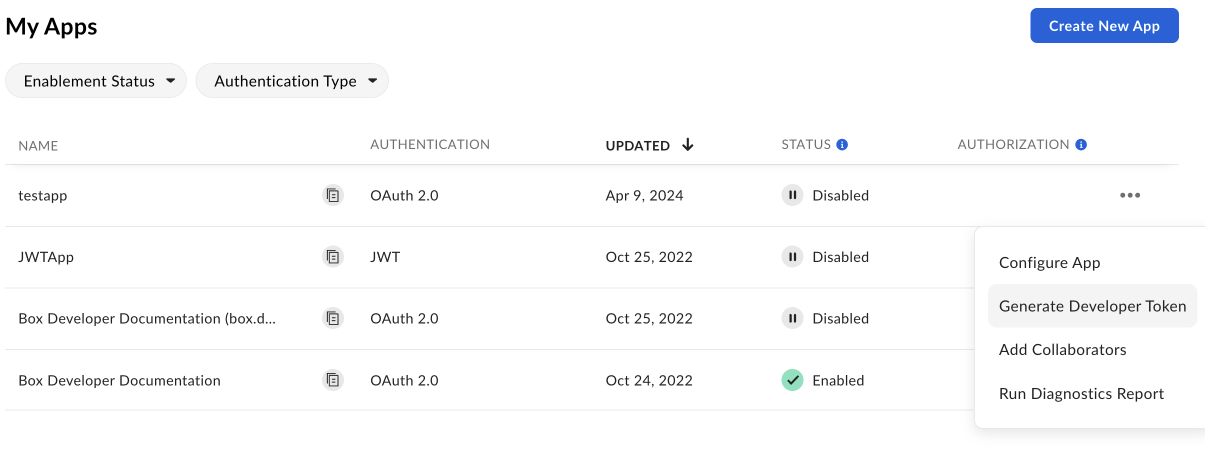
1. Go to **Developer Console** > **My Platform Apps**.
2. Click the **Options menu** button (…) on the right.
3. Select **Generate Developer Token**. The token will be automatically generated and saved to clipboard.
You can also open your app, go to
**Configuration** > **Developer Token**
and generate the token.
A developer token is only valid for one hour.
For additional details, see developer token.
After you generate the token, you can use it in cURL
or other clients, such as Postman, to make
calls.
## Use webhooks
You can create webhooks to monitor Doc Gen events and automate your business process or workflow.
Follow the instructions for adding webhooks. Your content type is your Doc Gen template file or folder.
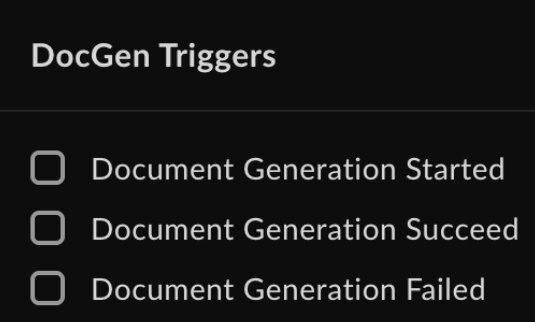
The supported events are:
* `DOCGEN_DOCUMENT_GENERATION_STARTED`
* `DOCGEN_DOCUMENT_GENERATION_SUCCEEDED`
* `DOCGEN_DOCUMENT_GENERATION_FAILED`
Information that is posted in a notification:
* Trigger name.
* Webhook trigger timestamp.
* Template file ID.
* Template file version ID.
* Template file name.
* Destination folder.
* Generated file ID (if the document generation process succeeds).
* Output type (DOCX or PDF).
* Reason (if the document generation process fails).
[settings]: https://support.box.com/hc/en-us/articles/4404822772755-Enterprise-Settings-Content-Sharing-Tab#h_01FYQGK5RW42T07GV985MQ9E9A
[template-addin]: https://support.box.com/hc/en-us/articles/36587535449747-Installing-Box-Doc-Gen-Add-in
[template-tags]: https://support.box.com/hc/en-us/articles/36151895655059-Creating-A-Box-Doc-Gen-Template-Manually
[json-template]: https://support.box.com/hc/en-us/articles/36148012877843-Creating-a-Box-Doc-Gen-Template-using-JSON-data
 You can also open your app, go to
**Configuration** > **Developer Token**
and generate the token.
You can also open your app, go to
**Configuration** > **Developer Token**
and generate the token.
 Information that is posted in a notification:
* Trigger name.
* Webhook trigger timestamp.
* Template file ID.
* Template file version ID.
* Template file name.
* Destination folder.
* Generated file ID (if the document generation process succeeds).
* Output type (DOCX or PDF).
* Reason (if the document generation process fails).
[settings]: https://support.box.com/hc/en-us/articles/4404822772755-Enterprise-Settings-Content-Sharing-Tab#h_01FYQGK5RW42T07GV985MQ9E9A
[template-addin]: https://support.box.com/hc/en-us/articles/36587535449747-Installing-Box-Doc-Gen-Add-in
[template-tags]: https://support.box.com/hc/en-us/articles/36151895655059-Creating-A-Box-Doc-Gen-Template-Manually
[json-template]: https://support.box.com/hc/en-us/articles/36148012877843-Creating-a-Box-Doc-Gen-Template-using-JSON-data
Information that is posted in a notification:
* Trigger name.
* Webhook trigger timestamp.
* Template file ID.
* Template file version ID.
* Template file name.
* Destination folder.
* Generated file ID (if the document generation process succeeds).
* Output type (DOCX or PDF).
* Reason (if the document generation process fails).
[settings]: https://support.box.com/hc/en-us/articles/4404822772755-Enterprise-Settings-Content-Sharing-Tab#h_01FYQGK5RW42T07GV985MQ9E9A
[template-addin]: https://support.box.com/hc/en-us/articles/36587535449747-Installing-Box-Doc-Gen-Add-in
[template-tags]: https://support.box.com/hc/en-us/articles/36151895655059-Creating-A-Box-Doc-Gen-Template-Manually
[json-template]: https://support.box.com/hc/en-us/articles/36148012877843-Creating-a-Box-Doc-Gen-Template-using-JSON-data