

Prerequisites
To set up a Platform App using server-side authentication, you need to ensure you have access to the Developer Console from your Box enterprise account. Alternatively, you may sign up for a developer account. Your Box account also needs multi-factor authentication (MFA) enabled, because Box requires it before it shows the application’s client secret on the Configuration tab.App creation steps
Create a Server Authentication app
- Log into Box and go to the Developer Console.
- Select New App.
- Select Server as the app type.
- Leave Client Credentials Grant selected under Select Method.
- Select Create.
When switching is enabled, you can change to
at any time from the
Configuration tab. See
for details.
App authorization
Server authentication applications must be authorized before use. The authorization process depends on your account type. Free developer accounts: Your app is automatically authorized when you create it. If authorization did not complete, the Configuration tab displays a prompt to authorize the app. Enterprise accounts: After you create the app, the Configuration tab prompts you to submit the app for admin approval. Enterprise admins and co-admins: The Configuration tab lets you authorize the app directly after creation.Learn more about the authorization process
Basic configuration
Application access
An application’s access level determines which users and content your app may access. By default, an application can only successfully interact with the content of its and any . To also access existing Managed Users of an enterprise, navigate to the App Access Level setting on the Configuration tab of the Developer console and set to App + Enterprise Access.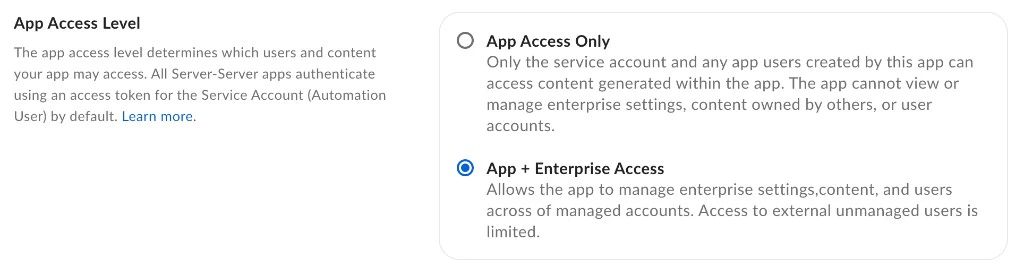
To authenticate as a Managed User or Admin, enable Generate User Access Tokens in the Additional Configuration section of the Configuration tab.
Application scopes
An application’s scopes determine which endpoints and resources an application can successfully call. See the for detailed information on each option.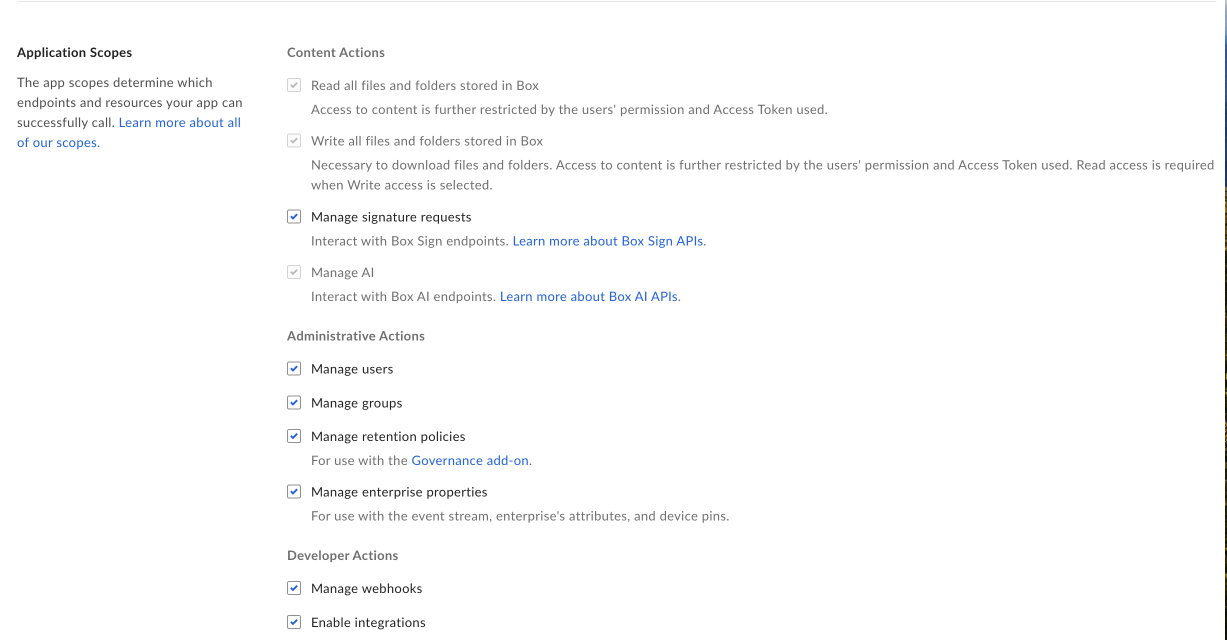
CORS domains
If your application makes API calls from front-end browser code in Javascript, the domain that these calls are made from needs to be added to an allow-list due to Cross Origin Resource Sharing, also known as CORS. If all requests are made from server-side code, you may skip this section. To add the full URI(s) to the allow-list, navigate to the CORS Domain section at the bottom of the Configuration tab in the Developer console.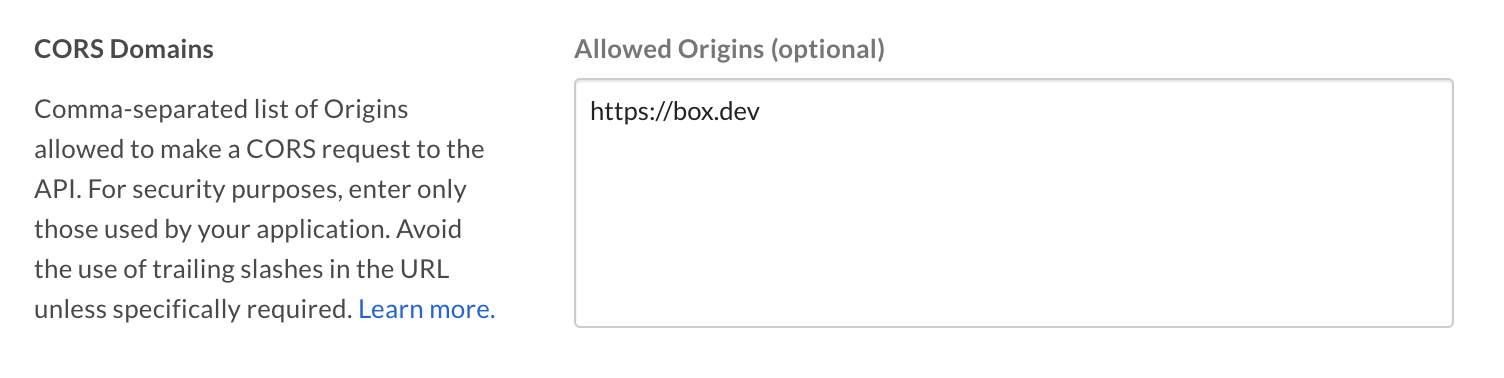
Get an access token
Post your client ID and client secret to the with agrant_type of client_credentials, and name the subject you want to
authenticate as.
Common errors
Grant credentials are invalid
During authentication, you can encounter the following error:- The client ID and client secret passed are incorrect or are not for the same application.
-
The
box_subject_idcan’t be used based on the selected application access.
-
Your application isn’t configured to generate user access tokens. Enable Generate User Access Tokens in the Advanced Features section of the Configuration tab.

- Your application has not been authorized in the Box Admin Console.